11. Platform console (Kombee staff)
For Kombee staff only: every company on SetBenchmark.
On this page:
- Credit packs and giving credits
- Revenue by region and plan
- Sandbox use
- Plan prices in other currencies
- Companies
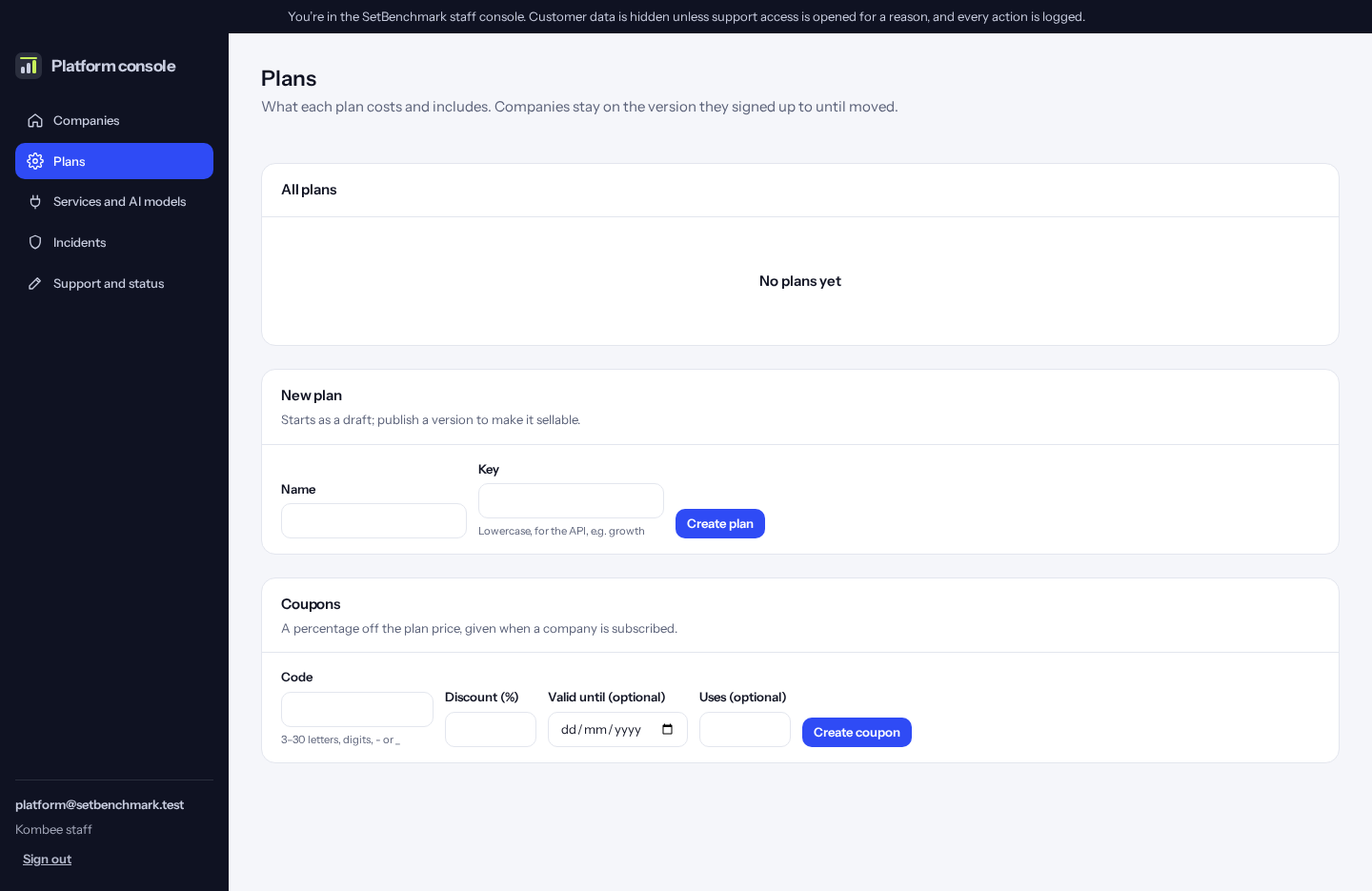
- Plans
- Practice problems and moderation
- Services and AI models
- Incidents
- Support and status
Credit packs and giving credits
Open “Plans” to change credit pack prices in each currency (before tax), or take a pack off sale. Packs show on the public pricing page at /pricing and in companies’ Settings → Billing. The prices there now are samples until the price list is approved.
Open a company and use “Give credits” for a deal or pilot: the number of credits and a reason. A company not on a paid plan then needs credits to start tests.
For credit payments to arrive, tick the “payment_link.paid” event on the webhook in the Razorpay dashboard.
Revenue by region and plan
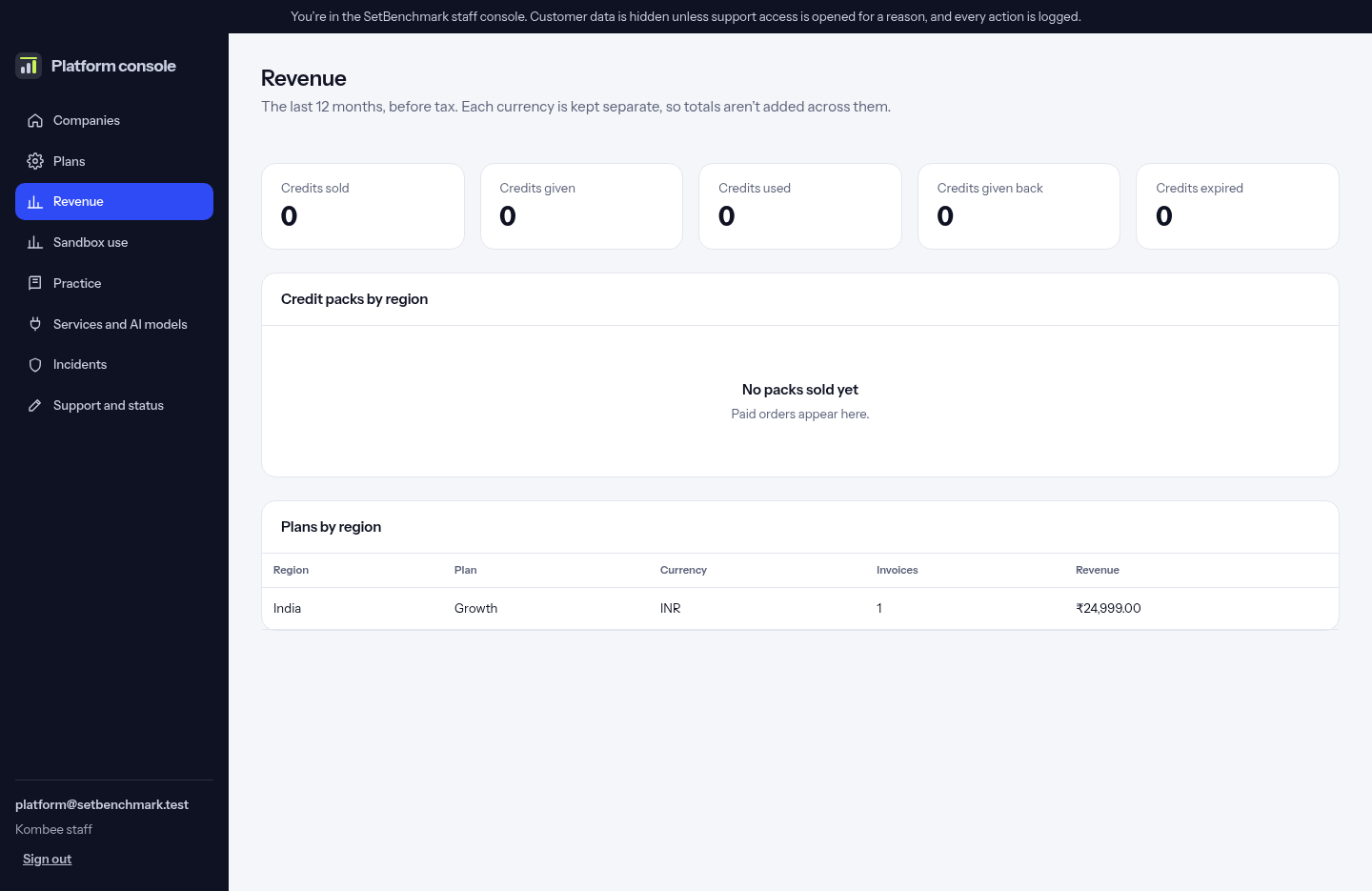
Click “Revenue” in the console. It shows credits sold, given, used, given back and expired over the last 12 months, then credit pack and plan revenue by region, before tax. Each currency stays separate, so nothing is added across currencies.
Once a day SetBenchmark also checks orders still waiting for payment against Razorpay. A paid order whose confirmation never arrived gets its credits, and any wallet that doesn’t match its ledger is written to the server log.
Sandbox use
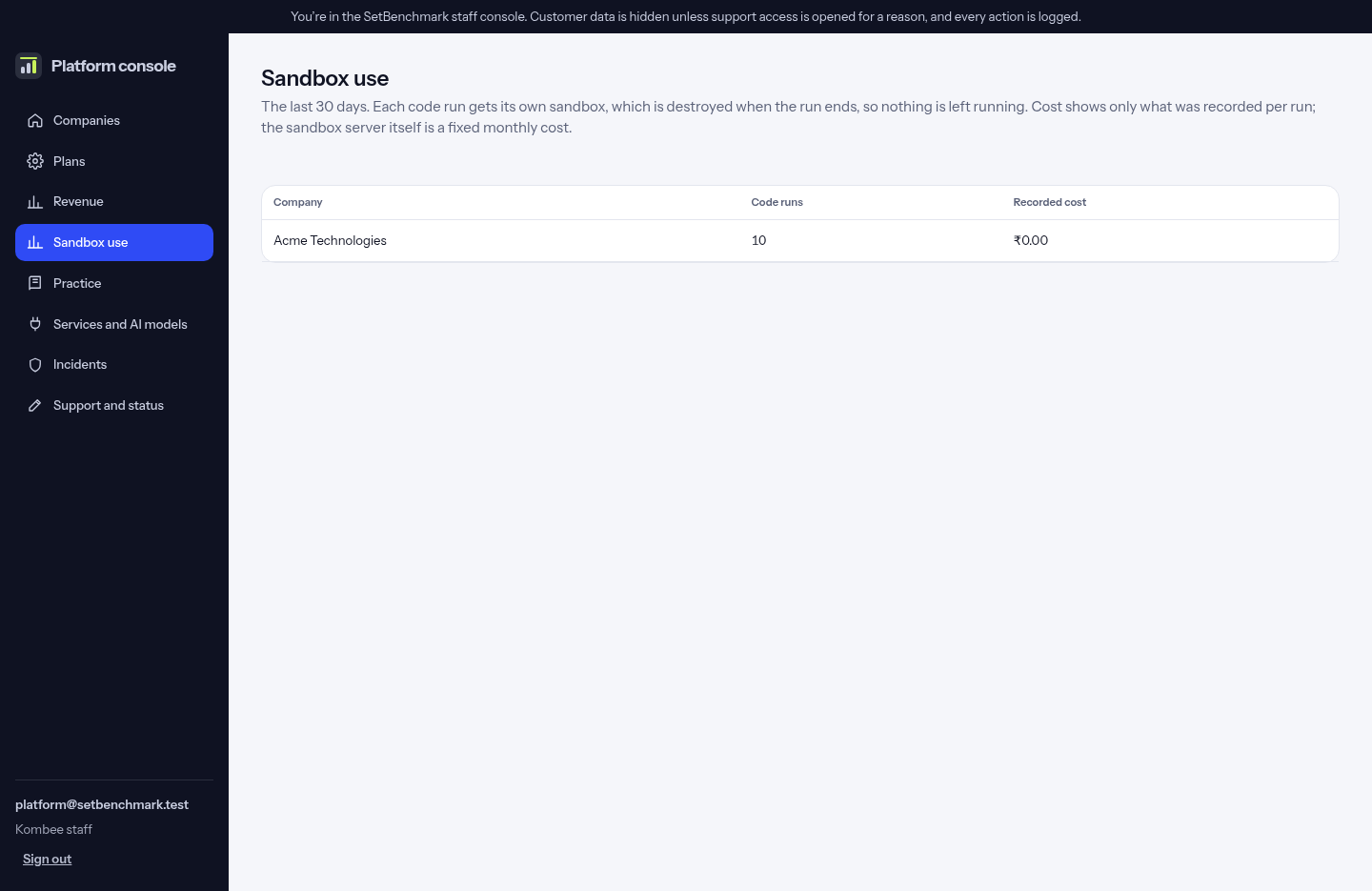
Click “Sandbox use” in the console to see code runs per company over the last 30 days. Each run gets its own sandbox, which is destroyed when the run ends, so nothing is left running. Cost shows only what was recorded per run; the sandbox server itself is a fixed monthly cost.
Plan prices in other currencies
In the console, open “Plans”, then “What companies see” on a plan. Under “Price on the public page, in other currencies”, type the price in AED, SAR, AUD and USD and click “Save”. A currency left empty shows “Ask us” on the pricing page. Prices are placeholders until Kombee approves the price list.
The pricing page opens in the visitor’s likely currency, worked out from their country or browser language, and they can always switch.
Companies
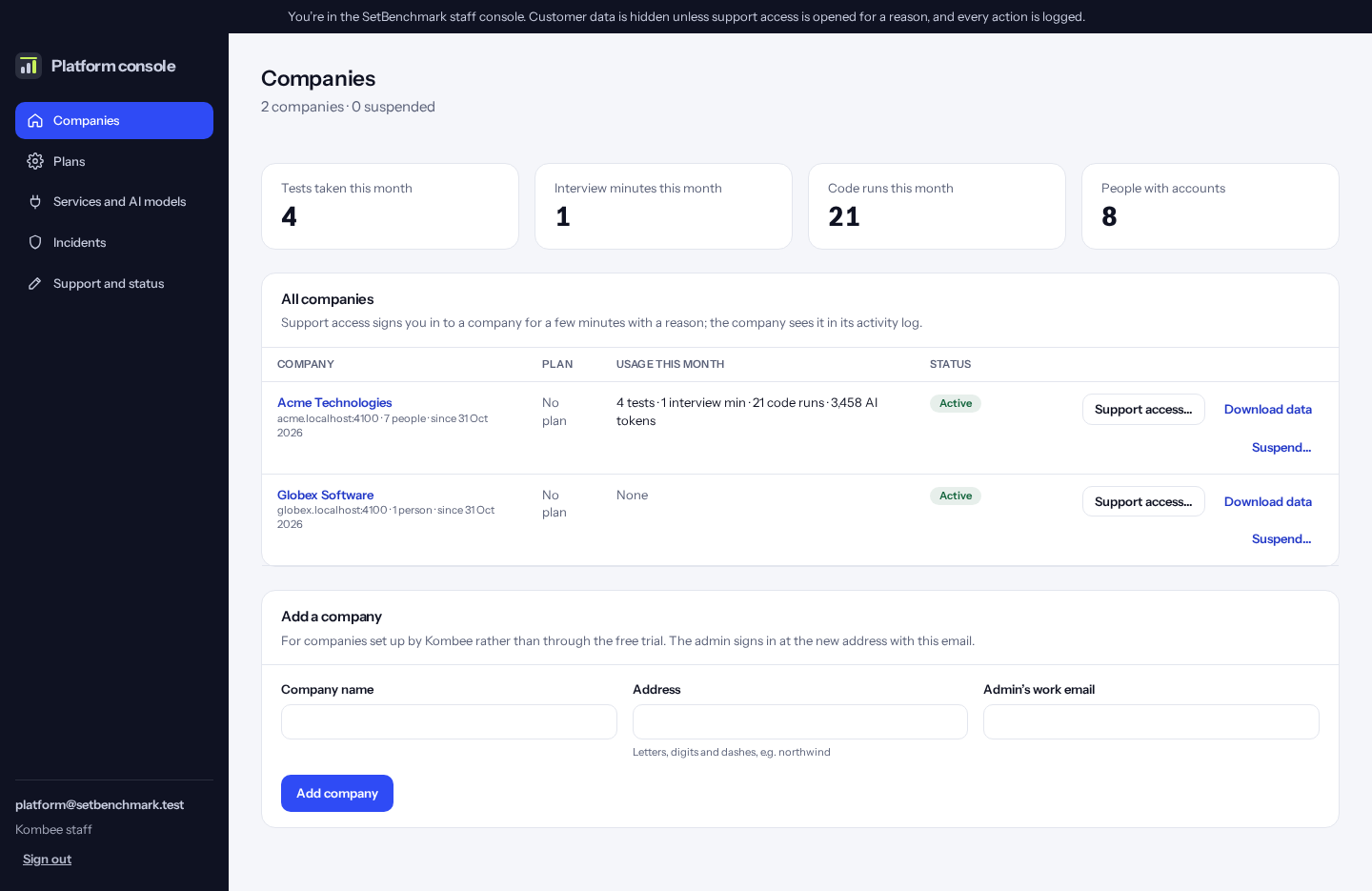
Add a company, see its plan and usage, suspend it, export or remove its data. Support access works only while the company allows it.
The Subdomain is the company’s own web address, such as acme-labs. It fills in from the company name, and you can change it before saving. A few names are kept for SetBenchmark’s own addresses (such as api, take, www, custom and console), so they can’t be used. The admin gets an invitation email with a sign-in link as soon as you add the company.
When you add a company, tick the modules it may use (all are ticked to start with). Its addresses work straight away, with nothing to set up on the server. On a company’s page, “Modules” switches modules on or off at once; putting it on a plan, or changing its plan, sets them from the plan again.
Plans
Plans, prices, coupons and each company’s subscription and invoices. Everything here is up to Kombee: no plan, price or limit is fixed in the software.
“Add the suggested plans” adds four to start from: Free (₹0: tests and basic monitoring, 10 tests a month), Silver (₹4,999 a month: adds video interviews and AI help with questions), Gold (₹14,999: adds AI interviews, employee skills and SMS or WhatsApp) and Platinum (₹39,999: everything, including API access and single sign-on). Prices are before GST. Change any of them, or make your own.
Each plan has “What companies see”: its name, description, place in the list and whether companies are offered it. A plan not offered can still be given to a company from its page in the console, for example for a special deal. Prices, modules and monthly allowances change by publishing a new version; companies already on the plan keep their version until moved.
A price of 0 makes a free plan. It never goes to Razorpay. When a paid plan or the free trial ends, the company moves to the first free plan offered. For each monthly allowance you can set an extra rate: with a rate, work carries on past the allowance and the extra is invoiced; without one, work stops at the allowance.
Tip: Switch on Razorpay first (Services → Payments, with the key ID, key secret and webhook secret), so companies can pay. In the Razorpay dashboard, add a webhook to https://api.<main site>/webhooks/razorpay (the api. address: the main address redirects, and Razorpay does not follow redirects) with the subscription and payment events.
Tip: Changing to another Razorpay account (for example from test keys to live keys) is fine: each plan is set up in the new account the first time a company chooses it.
Practice problems and moderation
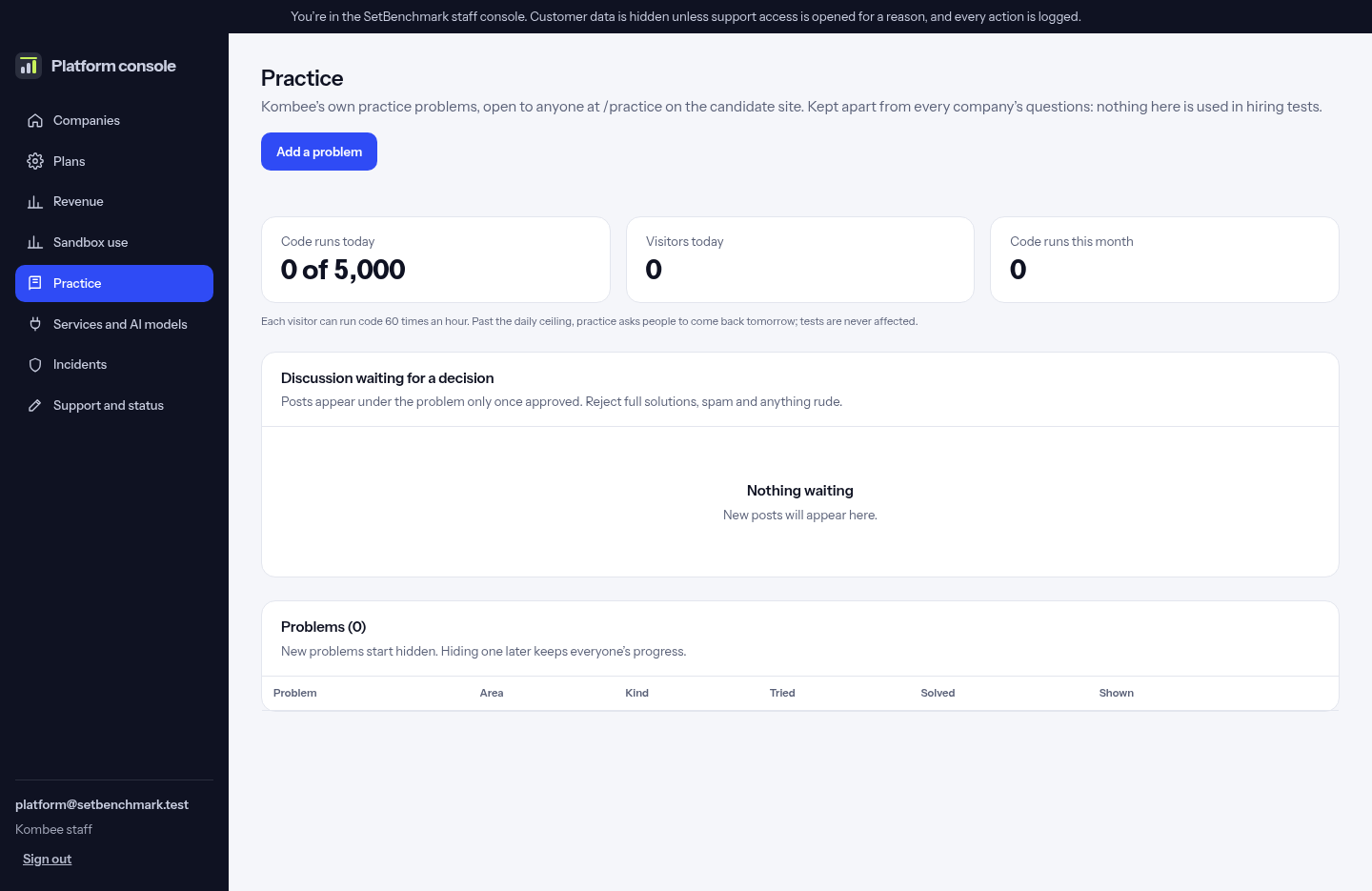
Open “Practice” to run the public practice area. The numbers at the top are practice’s own meter: code runs today against the daily ceiling, visitors today, and runs this month. Practice never uses a company’s allowance.
“Discussion waiting for a decision” lists new posts: click “Approve” to show one under its problem, or “Reject” (for full solutions, spam or anything rude).
Click “Add a problem”, or a problem’s title to edit it. For code, give each test the exact input and the exact output; tick “Example” for those to show (at least one), and keep at least one hidden. For multiple choice, put one answer per line and choose the right one; the write-up is shown as the explanation. New problems stay hidden until you click “Publish”; “Hide” takes one off the catalogue but keeps everyone’s progress.
Services and AI models
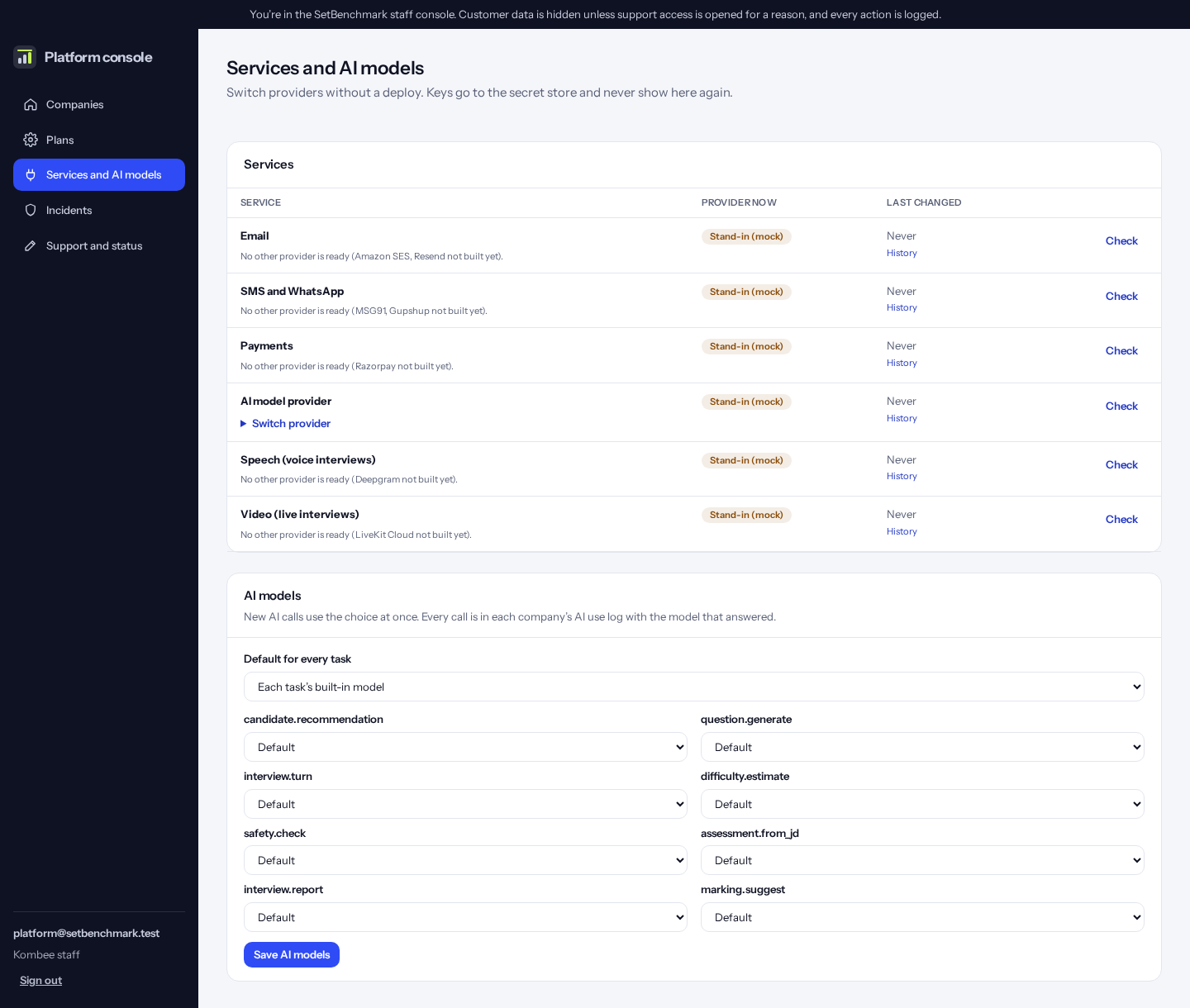
Which outside services (email, video, AI) are used, and which AI models. “Stand-in (mock)” means nothing really leaves SetBenchmark: emails, for example, are kept for testing and never reach anyone.
The same works for every service: SMS and WhatsApp (MSG91 for SMS, Gupshup for WhatsApp, or both), payments (Razorpay), speech for voice interviews (Deepgram), video interviews (LiveKit Cloud) and the AI interviewer avatar (Tavus). Each asks for its own keys; SMS and WhatsApp also need a message template approved with the provider.
To send real email, open “Switch provider” under Email and choose Amazon SES, Resend, Mailjet or SMTP. Fill in its key and the From address (on a domain you have verified with that provider), then “Switch now”. It takes effect at once, without a restart. Keys go to the secret store and never show again.
AI interviewer avatar: choose Tavus, paste Kombee’s Tavus key and the Face ID of the face to show, and set the longest interview in minutes (45 when blank). Leave PAL ID blank and press “Check”: an echo PAL is made and its id shown; paste it into PAL ID and save, so the same one is reused. Kombee’s Tavus account pays per minute; each room ends by itself at the limit, and minutes show under each company’s usage as interview minutes.
“Check” under Email sends a test email to you, or to the address you type in the box. If it fails, the message says why (for example, the domain isn’t verified yet). Every switch and check is listed under “History”.
Tip: Emails not reaching candidates or staff? Check that Email isn’t on the stand-in, then use “Check”.
Tip: Amazon SES needs an access key on Google Cloud servers; leave the key blank on AWS servers, which use their own role.
Tip: No email domain of your own yet? Choose SMTP and use a Gmail account: Server smtp.gmail.com, Port 465, Username the Gmail address, Password a 16-letter app password (Google account → Security → 2-Step Verification on → App passwords), From address the same Gmail address. Gmail sends about 500 emails a day, so use it for demos and small volumes. Microsoft 365 (smtp.office365.com, port 587) and Zoho work the same way.
Incidents
Code the sandbox stopped, across every company.
Support and status
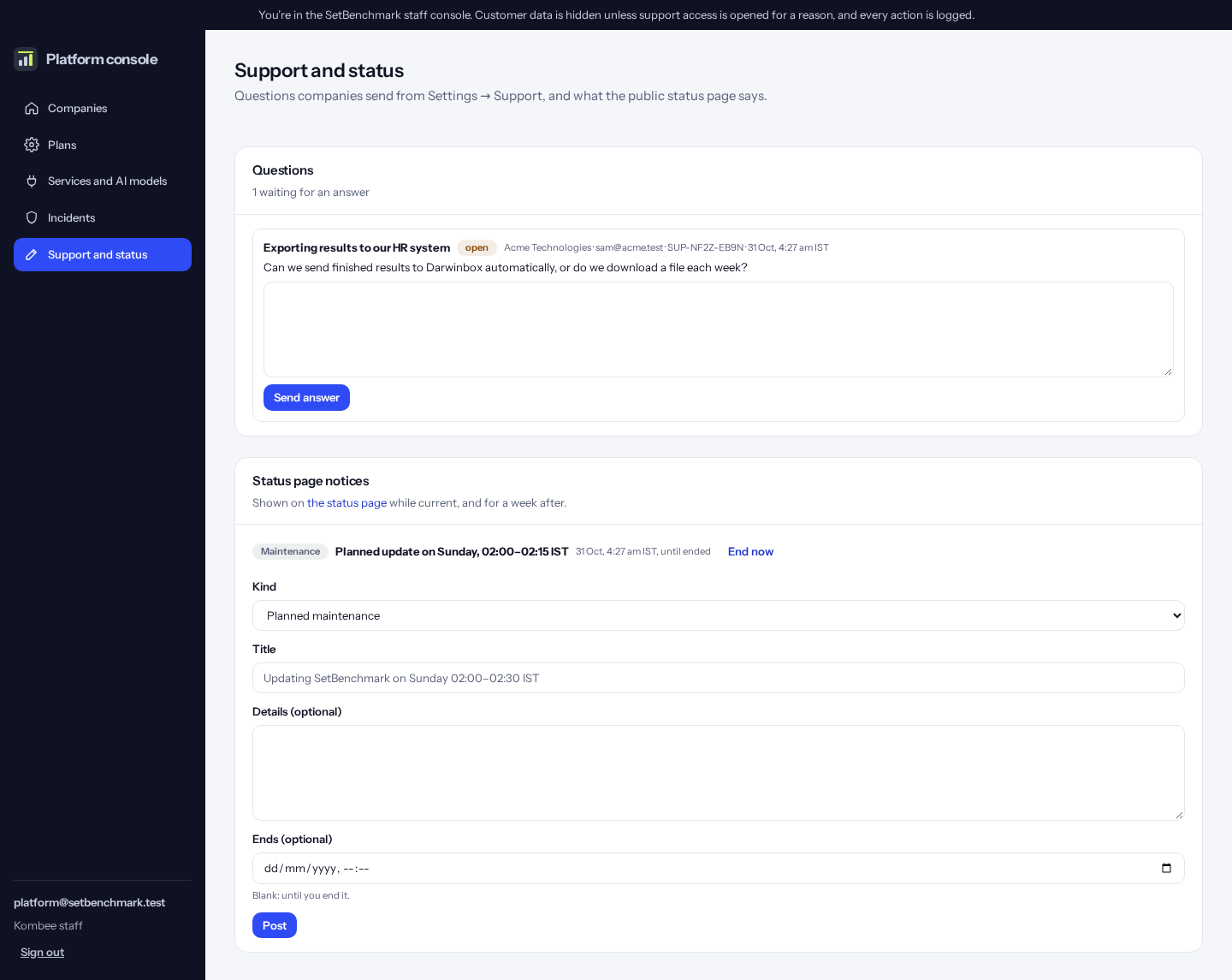
Answer companies’ questions, and post notices on the public status page, such as planned maintenance.