6. Interviews
Live video interviews with a shared code editor, scorecards, and AI interviews.
On this page:
- The interviews page
- Interview templates
- The interview room
- Identity checks in interviews
- Scorecards and debrief
- Scorecards you owe
- AI interviews to review
The interviews page
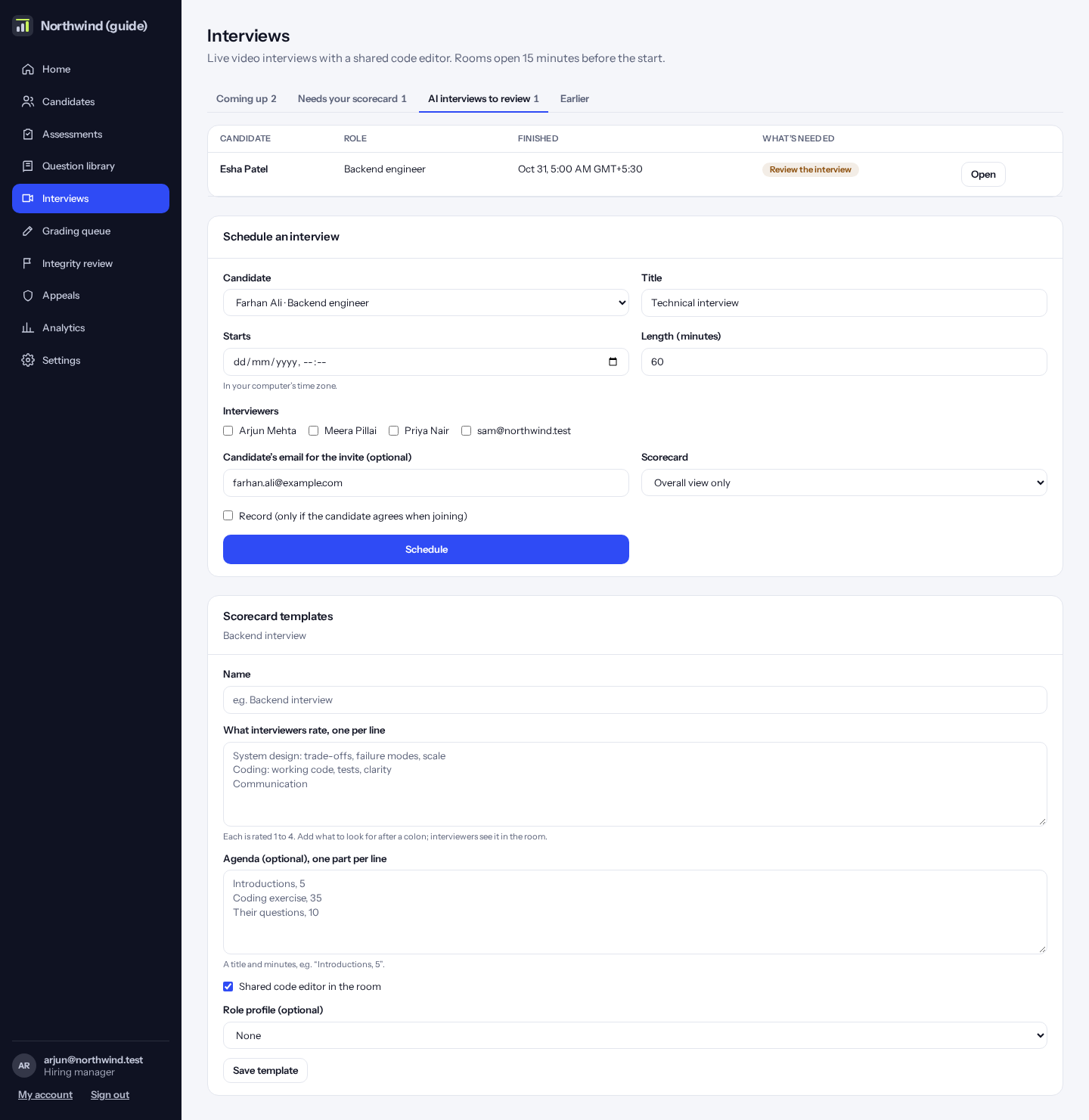
Click “Interviews”. The tabs show interviews coming up, scorecards you still owe, AI interviews to review, and earlier interviews.
“Schedule an interview” and “Scorecard templates” are buttons at the top right. On the right of the list you see the scorecards you owe and AI interviews to review.
How to do it:
- Click “Schedule an interview” at the top right, then choose the candidate, the time and the interviewers.
- Pick a template so everyone uses the same plan and scorecard.
- Click “Schedule”. Everyone gets a calendar invitation; the candidate gets an email with their link.
Tip: From a candidate’s result, “Schedule an interview” opens this form with the candidate already chosen.
Tip: Managers also see “How the interview room worked”: the average of interviewers’ ratings over the last 30 days, and their notes, without names.
Interview templates
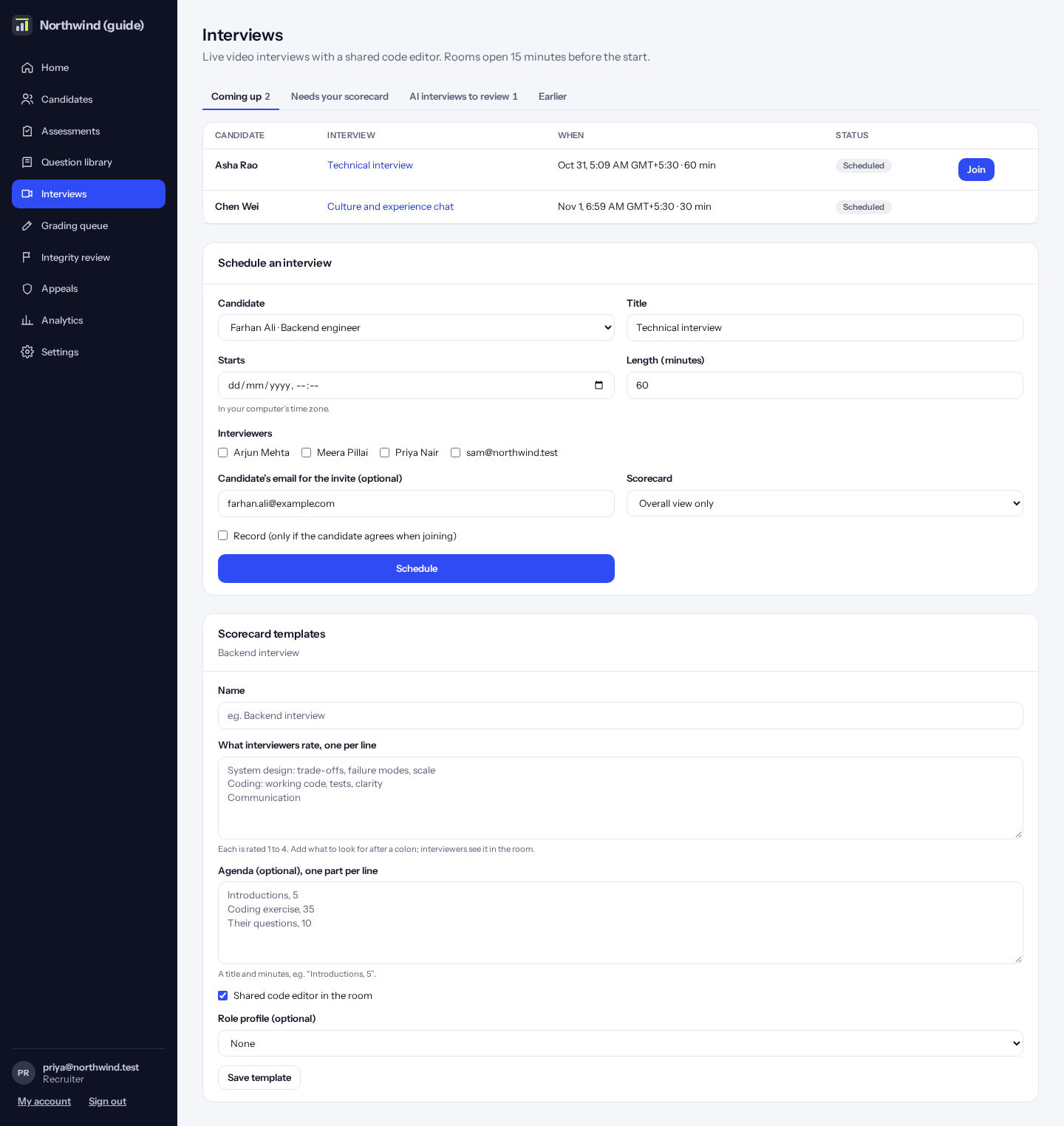
A template sets the plan: an agenda (each part with minutes), the areas interviewers rate with what to look for, whether the room has the shared code editor, and the role profile it is for.
The interview room
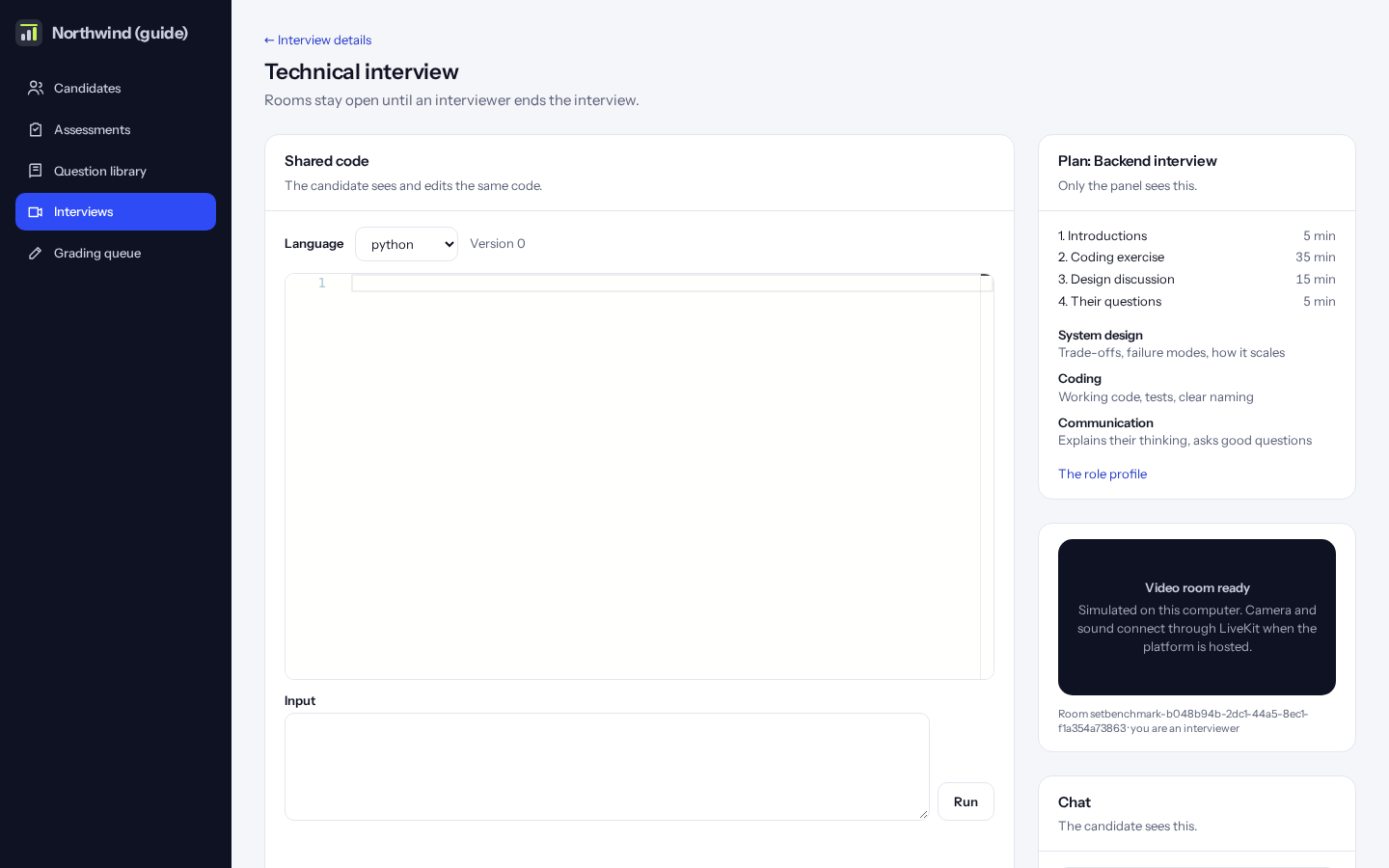
Video isn’t connected yet: the room says so, and the shared code and chat work. For sound, use a phone or video call for now.
The room opens 15 minutes before the start. Interviewers see the video, the shared code (the candidate types in the same editor), chat, private notes and the plan from the template. Afterwards you can rate the video call quality.
Tip: With a waiting room, an interviewer lets the candidate in. Some panel members can join to watch only.
Tip: After the interview starts, the interview page asks each interviewer “How did the interview room work?” (1 to 5, and a note). It’s about sound, video and the editor, never the candidate.
Tip: If your company runs blind interviews, the candidate takes part by voice only and interviewers see a reference like “Candidate 4F2A” instead of their name.
Identity checks in interviews
When a candidate had an identity check, their camera takes a photo as they join a live or AI interview and every 3 minutes after, compared with their identity check. In AI interviews each spoken answer is also compared with their voice sample. They see a small notice saying so; nothing is recorded for this.
If the face doesn’t match in two samples in a row (under 0.60), the interviewer sees a red “Identity: the face doesn’t match” banner in the room within about 15 seconds, and the candidate goes on hold. You might ask them to show their ID on camera, then decide on their Identity Trail.
Scorecards and debrief
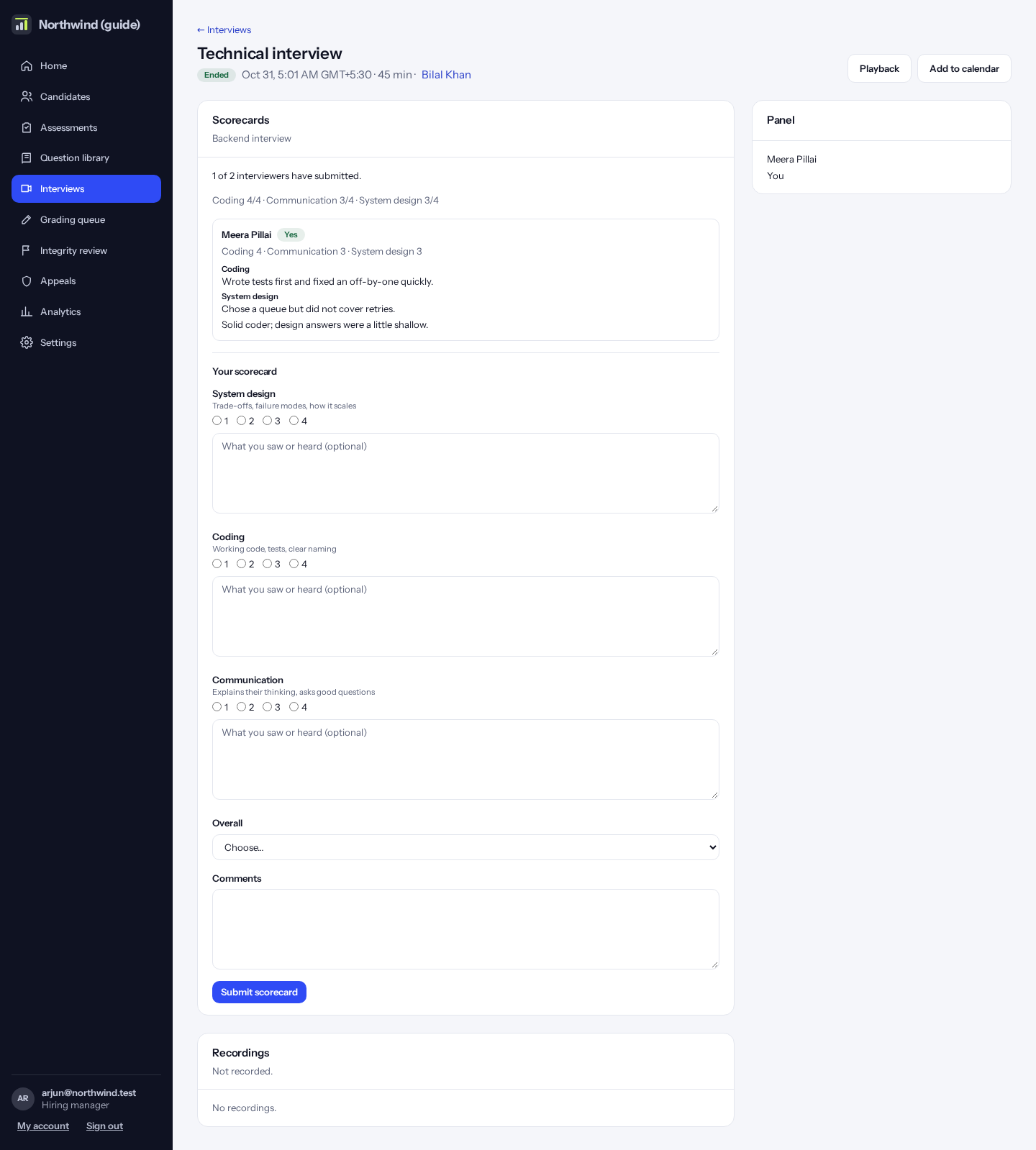
After the interview each interviewer fills in their scorecard: a rating per area, what they saw (evidence), and an overall view. You see colleagues’ scorecards only after sending your own, so views stay independent.
When every scorecard is in, the hiring manager writes the debrief: what the panel agreed.
Scorecards you owe
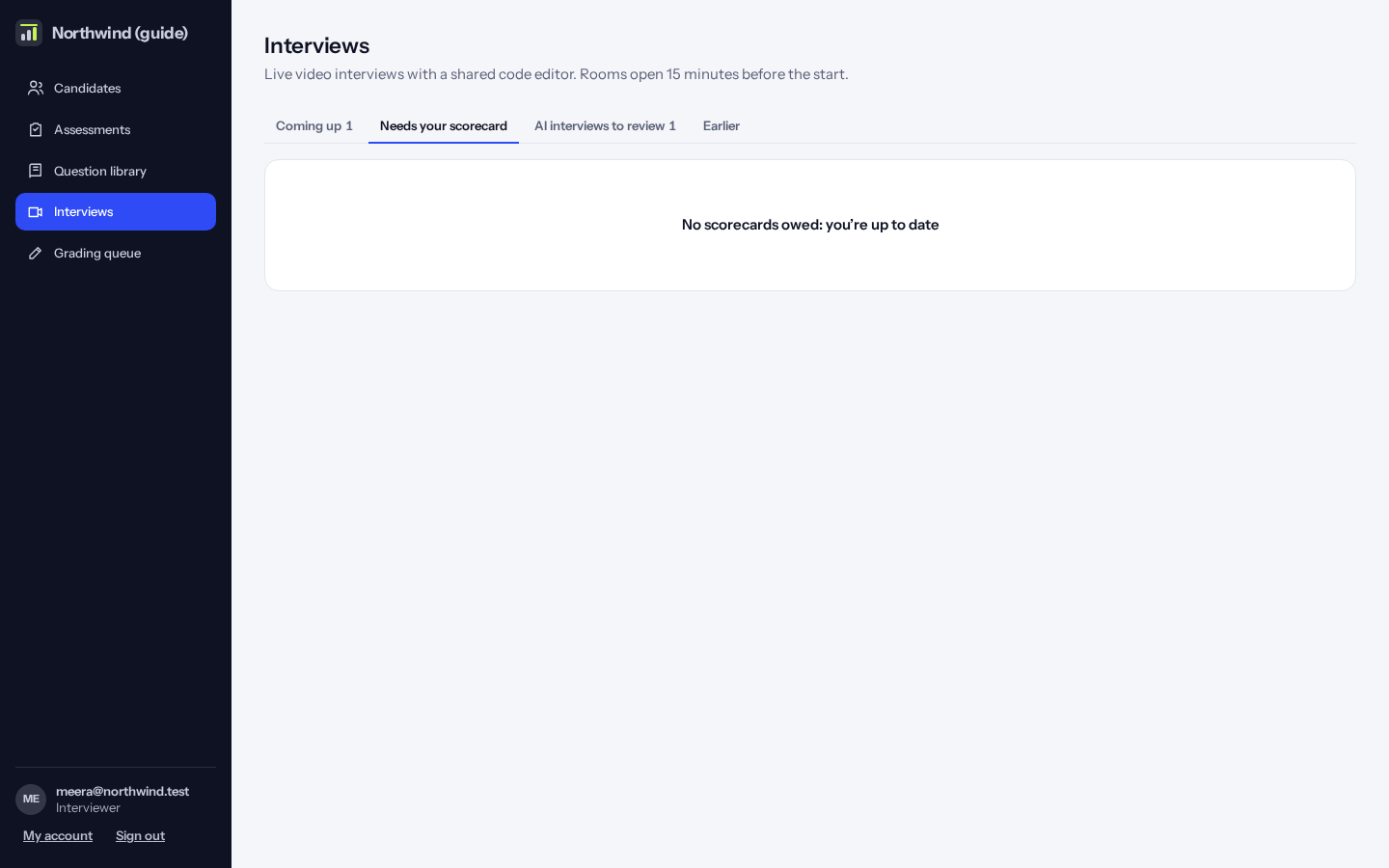
The “Needs your scorecard” tab lists interviews that have ended where your scorecard is missing.
AI interviews to review
An AI interview is a text or voice conversation with an AI interviewer, or a spoken one with the video interviewer (an AI avatar saying the questions). The candidate is told it is an AI. When it finishes, it waits here for a person.
Open it to read the whole conversation, search it, see the AI’s report by area, and give your own rating per area beside the AI’s. Click “Submit review”.