10. What candidates see
The candidate’s side, from the invitation email to the end of the test. Candidates need no account.
On this page:
- Their assessments
- Talent Passport: saving and sharing skills
- If the connection drops during a test
- Language and WhatsApp reminders for candidates
- Withdrawing consent to being captured
- The step before the questions
- Their skill report
- Retaking a test from the report
- Sharing a skill report by link
- Report language
- Messages on a candidate’s own clock and in their language
- Telling candidates a decision is near
- Candidates proving who they are (ID and selfie)
- Before you start
- Asking for an adjustment
- Sections, details and their own time
- The test screen
- Multiple choice
- Whiteboard (system design) questions
- Repository tasks (fix the codebase)
- Directing the coding agent
- Competitions and hackathons
- The developer community: practice, contests and certificates
- Job matching for developers
- Using the AI assistant (tests that allow AI)
- Timed sections and extra time
- Submitting
- Done
- The optional equality survey
- An AI interview
- AI avatar: a video face for the AI interview
- Practice: problems to warm up on
- Mock interview: rehearse and get feedback
- Their data
- Help
Their assessments
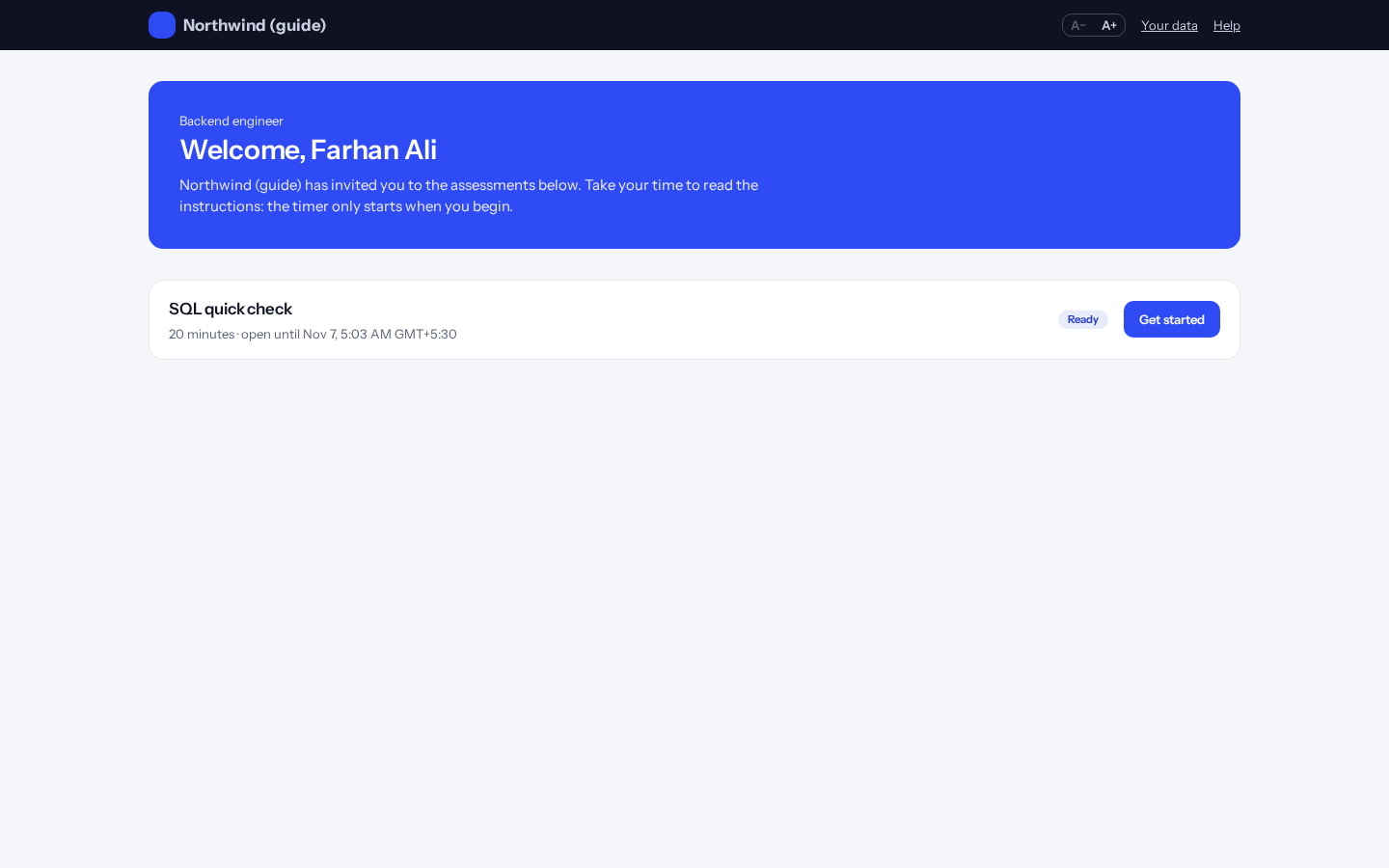
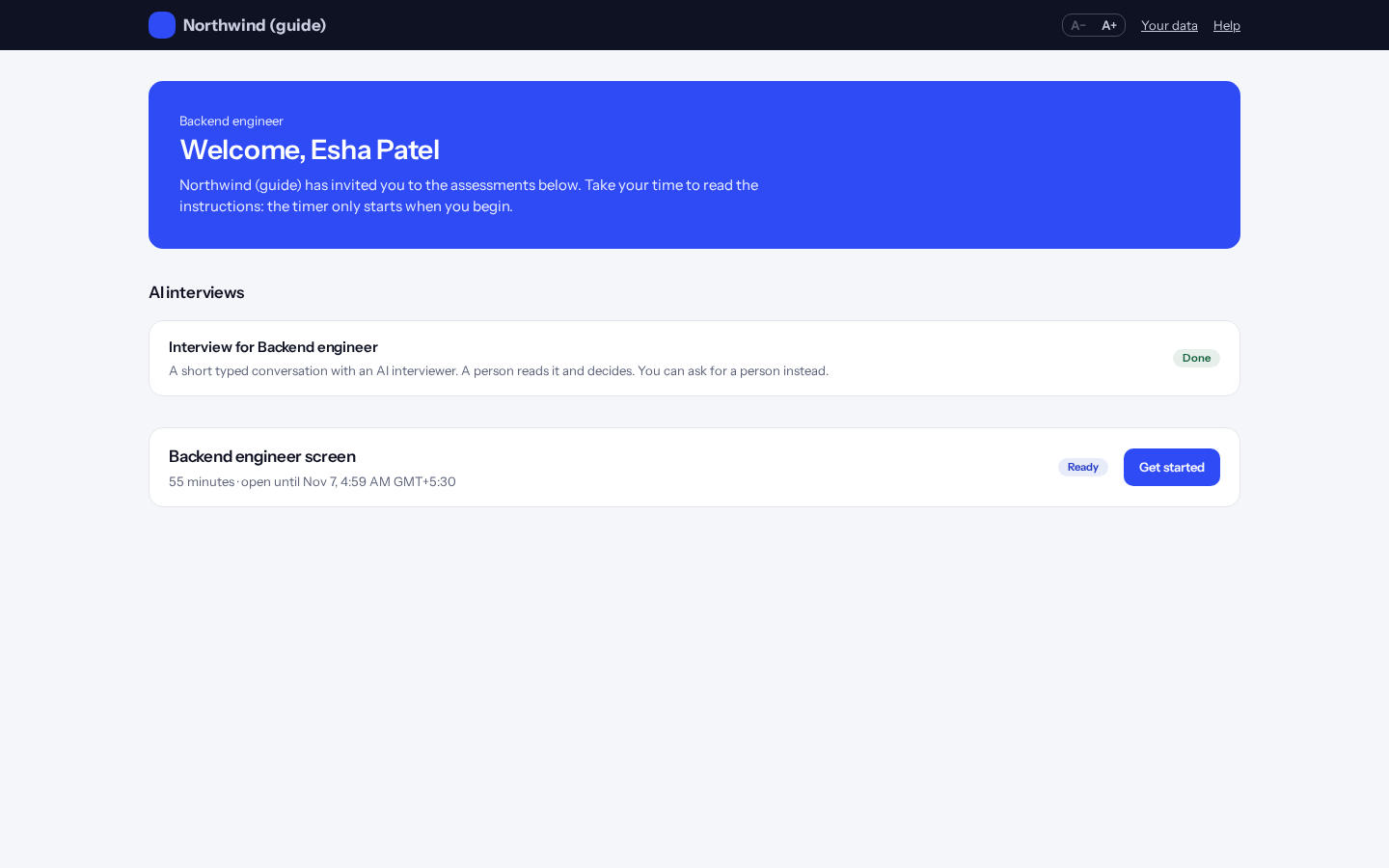
The link in the invitation email signs the candidate in and shows their tests and interviews. Each link works once. If it no longer works (opened in another browser, say), they type their email under “Email me a new link” and a new one is sent, but only to the address the company has for them, and only while a test is still open.
“Your application” shows the steps that apply to them (application received, assessment, marking, interview, decision), which are done, and for the current one “we aim to update you by” a date the company sets. It says when a decision is made, never what it is.
If the company allows it, a test they haven’t started shows “Give me 48 more hours” in its last 2 days (or up to a week after it closed). It works once per test. We send more than one reminder: reminders come by email, up to 3 times, the last the day before the test closes.
Talent Passport: saving and sharing skills
On a skill report, the candidate clicks “Save to Passport”. Only fully marked results with no open integrity or identity question can go on. Each skill lasts 12 months from the test.
From “Your Talent Passport” on their home page they make a share link lasting 7, 30 or 90 days, choosing whether it shows scores and percentile. The link and QR code show once. They see every view, and can stop a link at any time.
Whoever opens the link sees whether the signature checks out, the skills and when each runs out. An expired link says “Link expired” and shows nothing else. The Passport is a signed credential that anyone can check with our public key.
Tip: A company can revoke a Passport from the Identity Trail, and an Invalidate or Reject & block decision revokes it too. Companies can put their own brand on Passports, or turn them off, under Settings, then “Identity & Passport”.
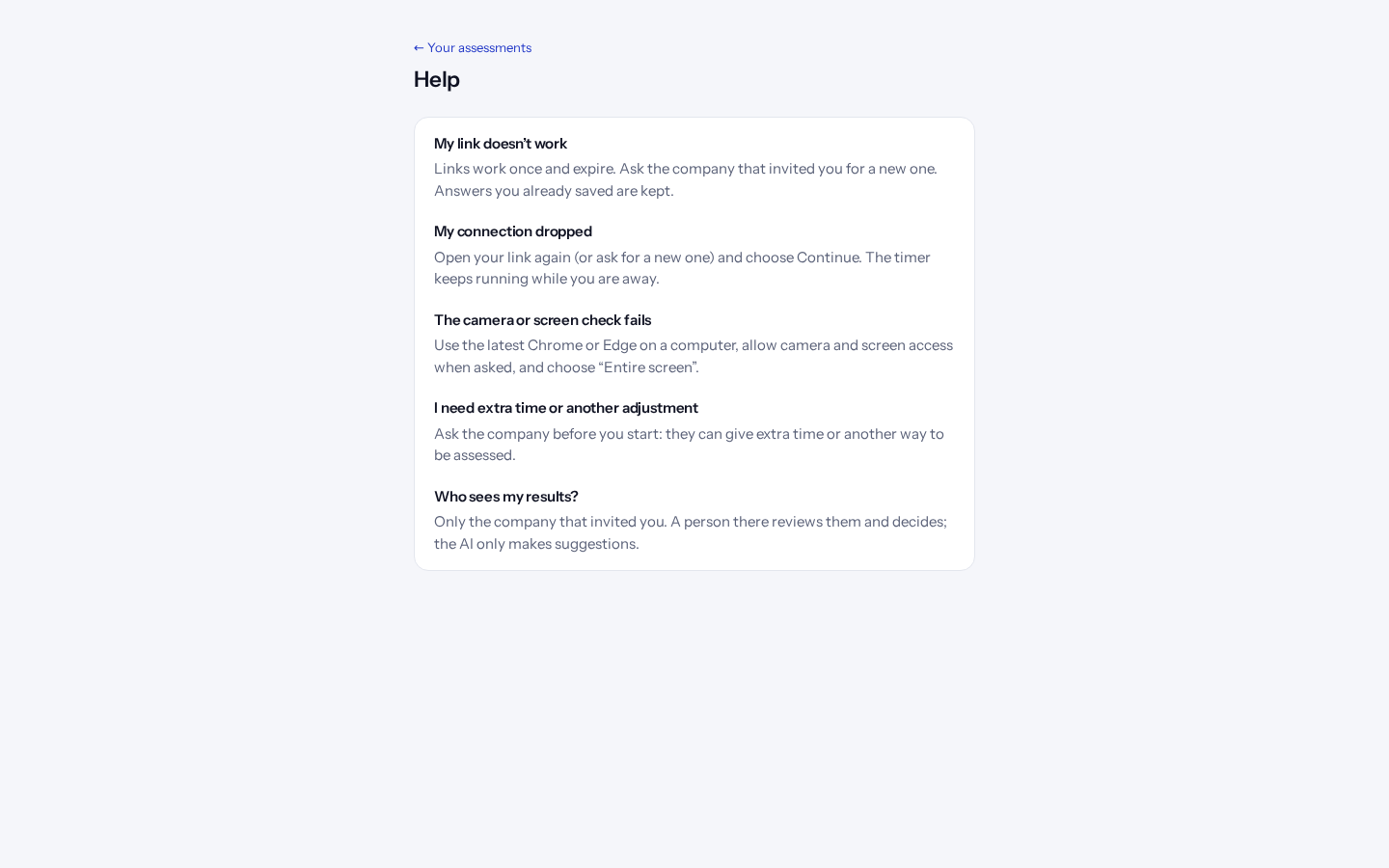
If the connection drops during a test
Candidates can keep working. Every change is kept in their browser straight away and sent as soon as they’re back, so a drop or a closed tab loses nothing. If the page reloads, unsent answers come back by themselves.
After a drop of 30 seconds or more, the time lost is given back, up to your limits, and never more than has passed since the last answer reached us. Each pause shows on the test’s integrity timeline.
Language and WhatsApp reminders for candidates
With more than one language on, candidates choose theirs at the top of their home page. It then applies across their screens: consent, device checks, their details, the test, help, Your data, the Passport, interviews and AI interviews. Questions and company messages stay as the company wrote them. Arabic and Hindi need a native speaker’s review before launch.
Under “Reminders on WhatsApp” they can add their number and agree to reminders. We never message anyone on WhatsApp who hasn’t said yes, and messages hold no scores. If WhatsApp can’t send, it falls back to email. On a candidate’s Timeline tab, “Messages sent” shows each message and whether it was sent, delivered or read.
Tip: WhatsApp needs a Meta Business account set up by Kombee in the console. Until then reminders go by email.
Withdrawing consent to being captured
Before a monitored test, the candidate sees where their data is stored and which law protects it. After the test they can open “Your data” and click “Withdraw my consent”. Their camera images, screen captures and recordings are deleted straight away, and they get a deletion certificate with a code. Their answers and results stay; to delete those too, they make a deletion request.
This can’t be done during a test, or while a legal hold is on. A full deletion also leaves a certificate, which holds only counts and a one-way reference, not the person’s details. The wording for each country needs confirming by local counsel before launch.
The step before the questions
On a monitored test, the candidate turns on the camera, screen sharing and full screen after clicking “Start the test”. The time this takes is given back, up to 5 minutes in all, and is on the record. If the browser refuses full screen, they can click “Continue without full screen”, and the company is told.
Their skill report
When a hiring test is marked (or after the company decides, if it chooses), the candidate gets an email and “See your skill report” appears next to the test. The report shows their overall level (and percentage and band, such as “Top 25%”, if the company shows them), each skill with its level and a line on how it went, their strongest skill and the one to work on, free learning for skills to improve, and when they may retake the test or ask to.
It never shows the questions, the answers or the hiring decision. While written answers are still being marked it says so; while an integrity concern is recorded it shows a neutral note and a link to ask for a review.
“Download as PDF” opens the print window to save it. At the end, one question asks how likely they are to recommend the company’s hiring process (0 to 10); the answer is anonymous and asked once.
Retaking a test from the report
If a test allows retakes, the candidate can start one from their skill report once the wait has passed (14 days unless you change it in “Settings”, “Candidate reports”). They click “Retake with a new version” and go straight to the test. Each retake uses a credit, like any other try.
If the test has no retakes left, the report says they can ask you instead. There is no button while another try is open, after you have decided on their application, or while the test is under integrity review.
Sharing a skill report by link
On their skill report, the candidate clicks “Share a read-only link” and copies the address. It is shown only once and works for 30 days. Making a new link stops the old one, and “Stop sharing” ends it straight away.
Whoever opens the link sees the candidate’s name, levels and feedback, following your settings for percentages and bands. They do not see the free learning, the retake option or anything about the hiring process. The link shows “Link expired” after it ends, and the report isn’t available while you switch reports off or while the test is under review.
Report language
The skill report appears in the language the candidate chose: English, Arabic or Hindi. A link they share is always in English. Arabic and Hindi need a native speaker’s review before launch.
Messages on a candidate’s own clock and in their language
When a candidate opens their assessments page, their browser’s time zone is saved. Reminders then wait for the end of quiet hours on their clock; for anyone else, your company’s time zone is used.
The test reminder, the “report ready” message and the decision stage message go out in the language they chose (English, Arabic or Hindi), unless you wrote your own version of that message. Other emails are in English for now.
If a WhatsApp message can’t be sent, the same message goes by SMS to that number, then by email.
On a weak connection, or with the browser’s data saver on, camera images taken during a test are made smaller, about 160p.
Telling candidates a decision is near
When someone at your company records a decision, the candidate gets a message saying their application has reached the decision stage and that you will contact them. It never says what you decided. It goes by WhatsApp if they said yes to it, otherwise by email. To turn it off, click “Settings”, then “Candidate reports”, and set “Message when the decision stage is reached” to “Don’t send”.
Candidates proving who they are (ID and selfie)
On a test with an identity check, after agreeing to what the test captures, the candidate is told what the identity check collects, why, where it is kept and for how long, and agrees. Then they photograph their ID (upload a photo, or hold it up to the camera), take a selfie (look at the camera, then turn their head left and right in the order shown), and can record a sentence for the voice check.
If the selfie doesn’t match, they try once more; after that they can ask a person at the company to check them. They can withdraw their consent on their “Your data” page: their photos and face and voice templates are then deleted.
Before you start
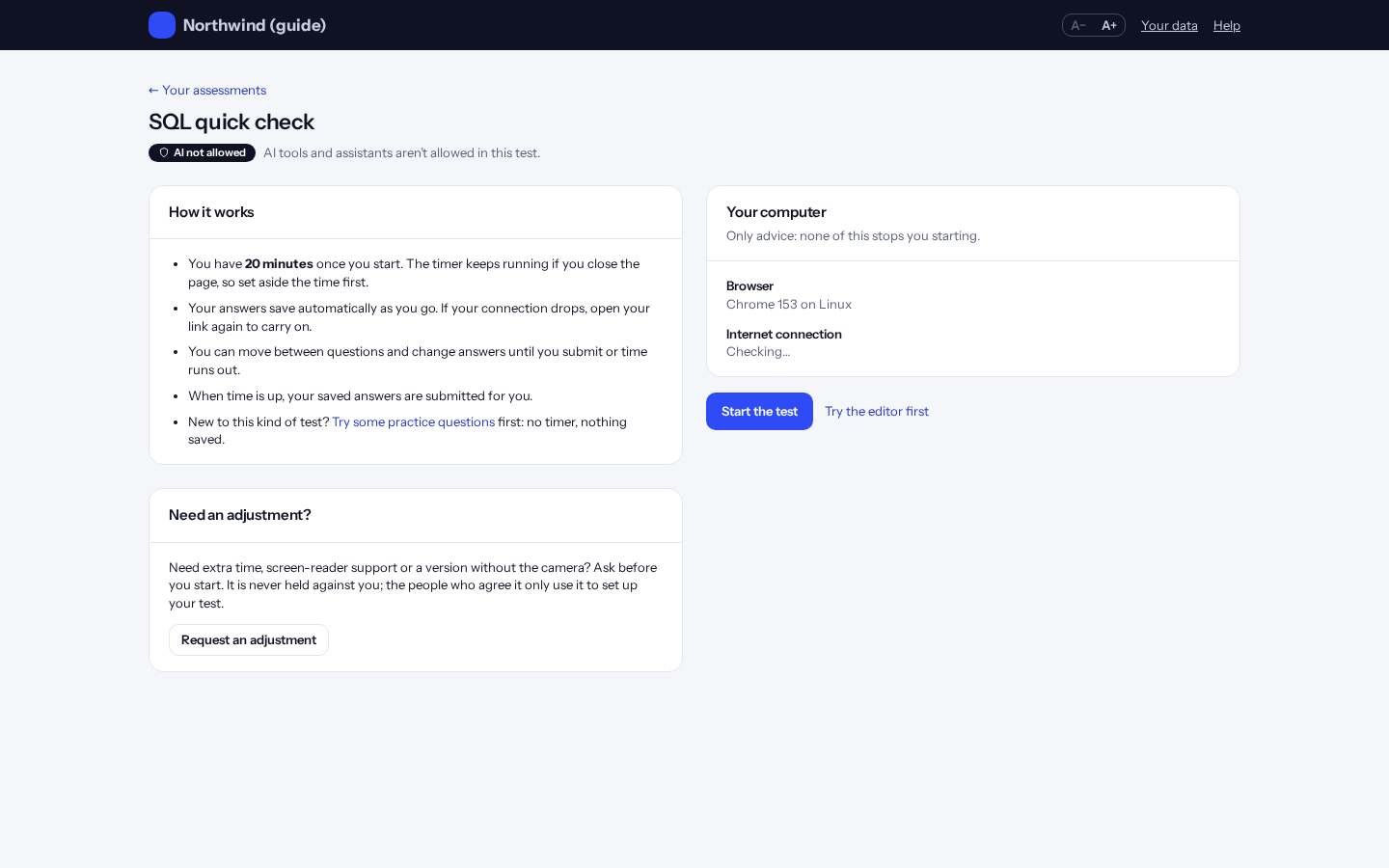
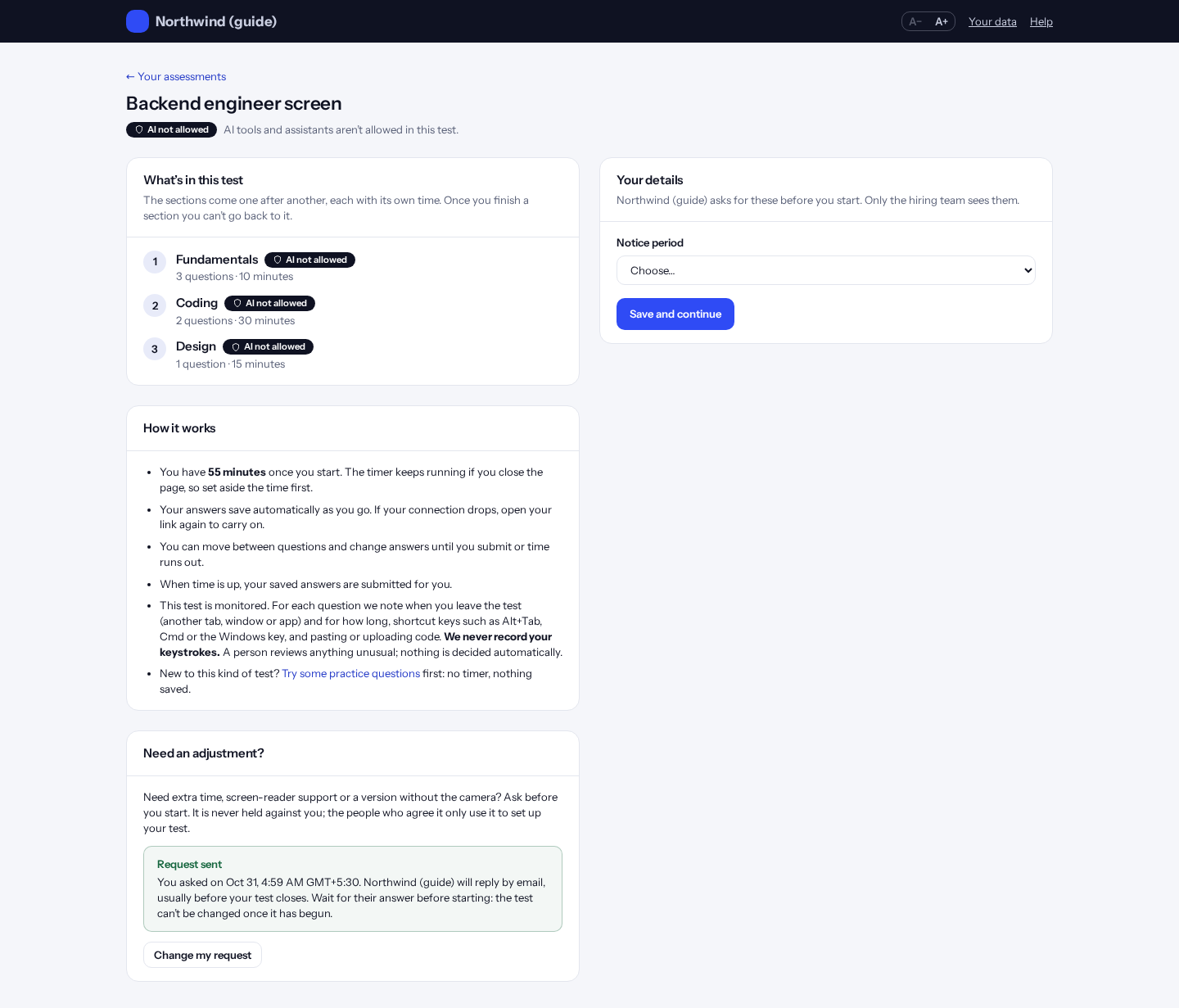
Before starting, the candidate sees the sections with their time and AI rule, how the test works, and what is monitored. They agree to monitoring, fill in any details the company asks for, and pass the checks: browser, internet connection, and (for monitored tests) their full name. If the company wrote a declaration, they read it and tick “I agree to this declaration”; “Start the test” stays greyed out until they do.
Tip: “Try the editor first” opens practice questions: no timer, nothing saved.
Asking for an adjustment
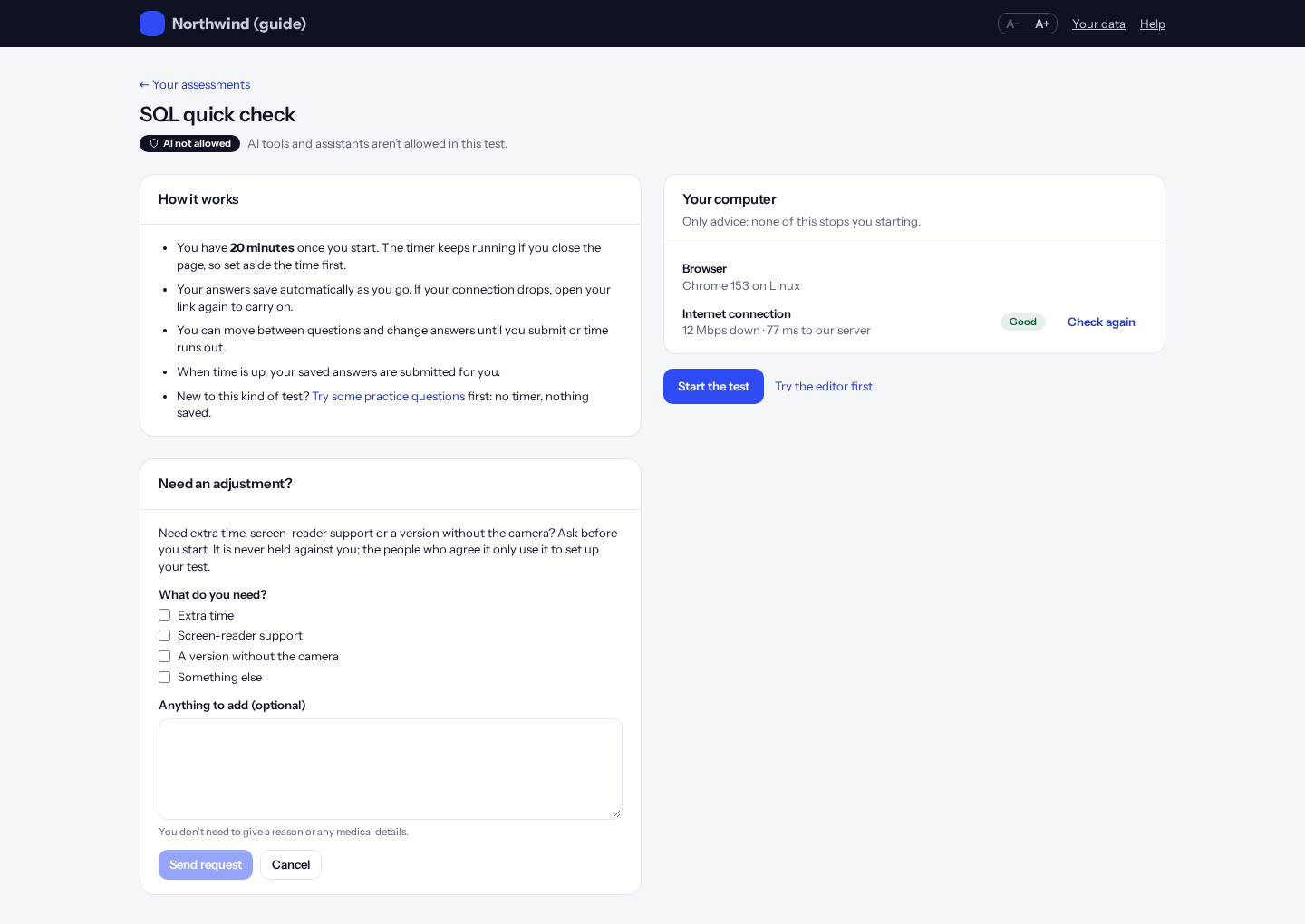
Candidates can ask for extra time, screen-reader support, a version without the camera, or something else. They don’t need to give a reason.
Sections, details and their own time
The candidate sees exactly what is in the test, and that their request was sent.
The test screen
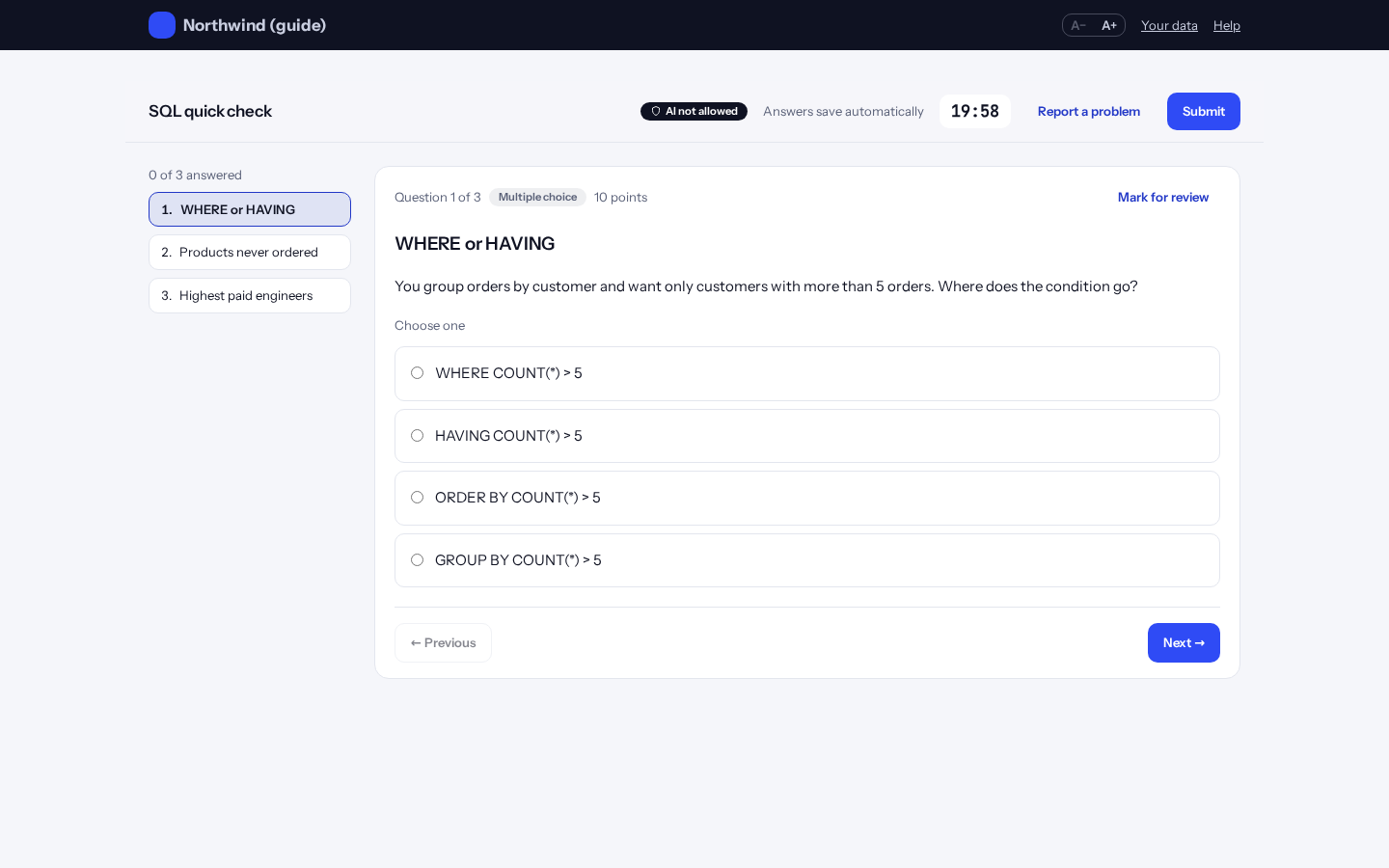
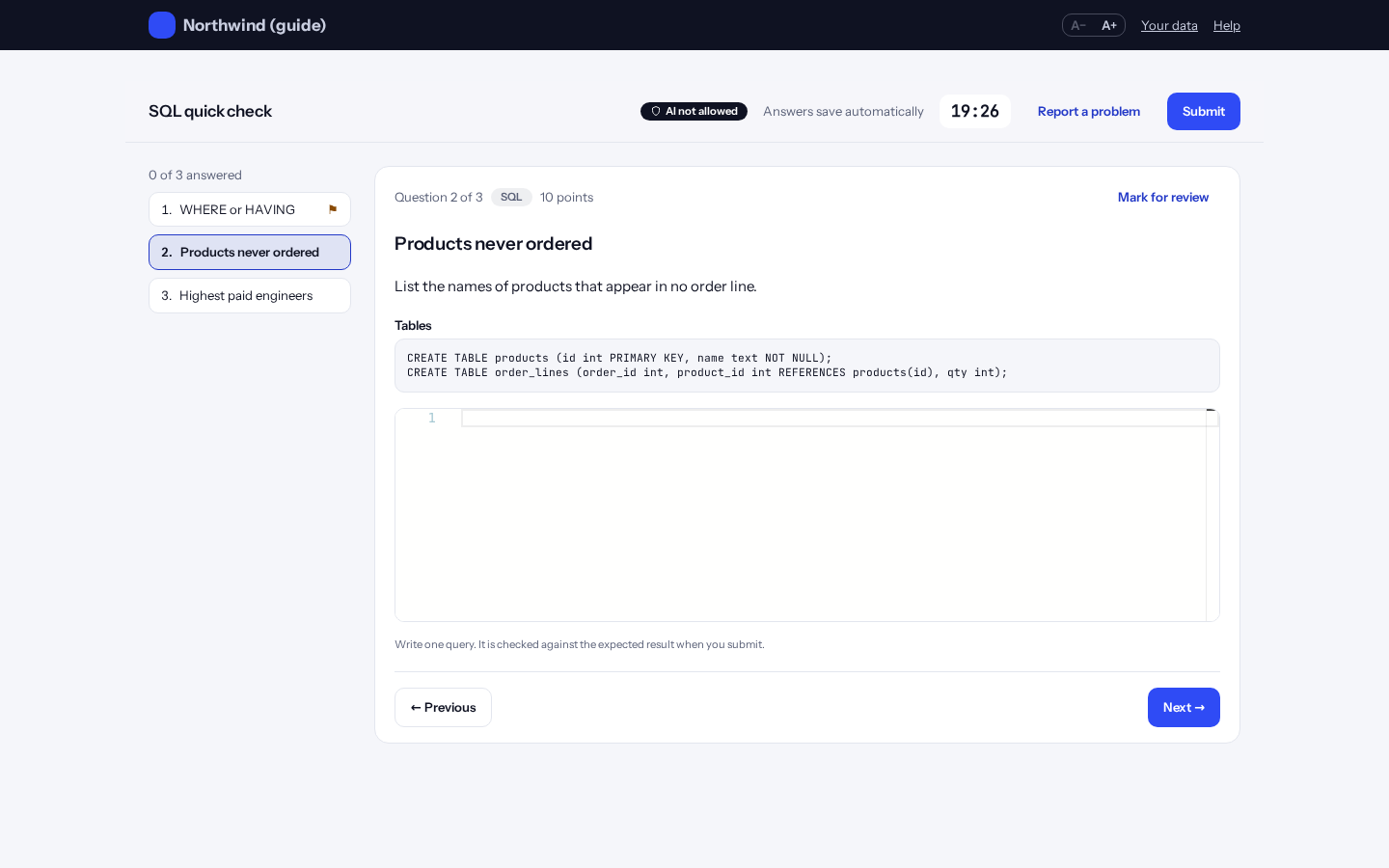
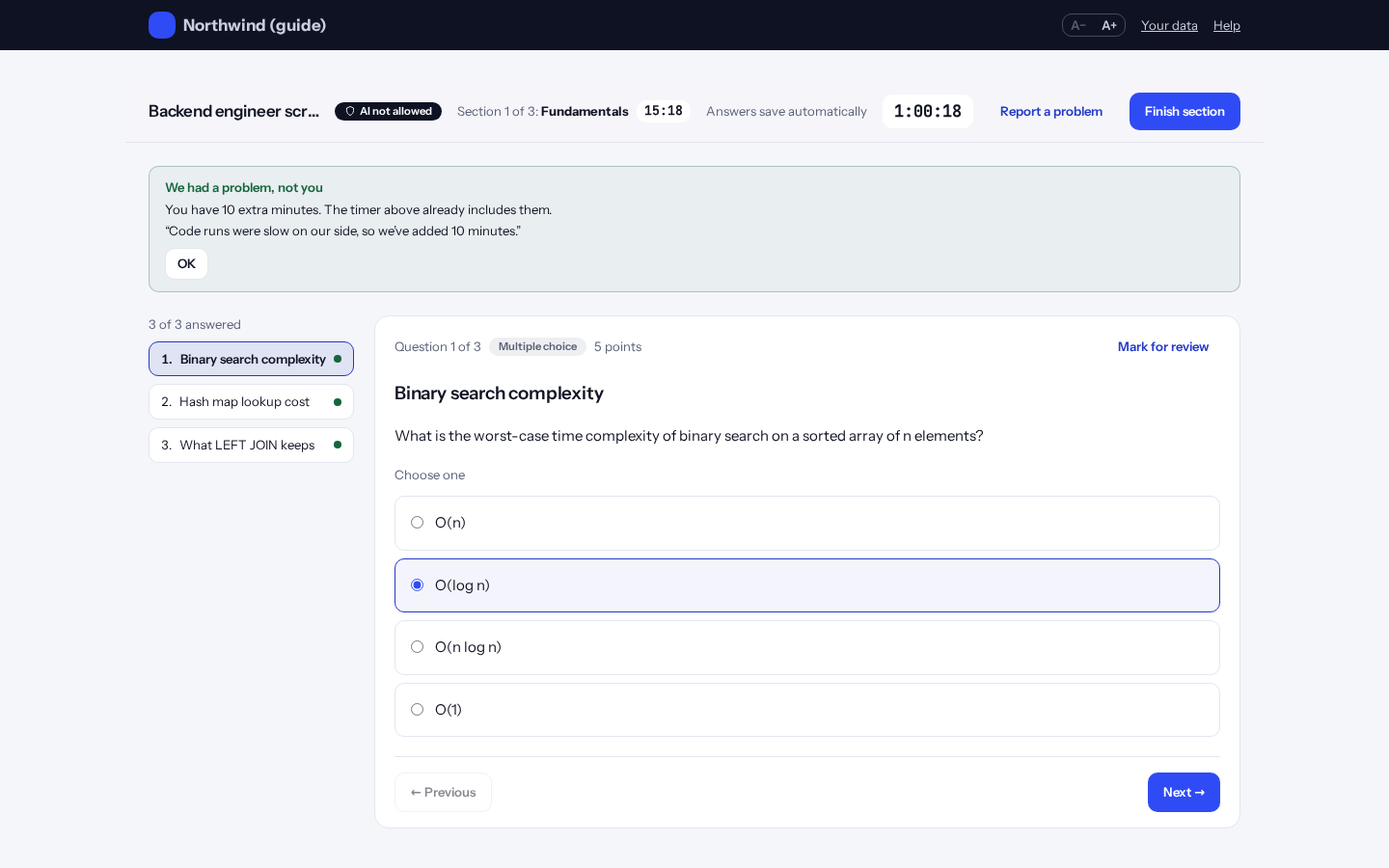
The test fills the screen. The bar at the top has the AI rule, the timer, “Report a problem”, text size and Help, with a thin line showing how much is answered. On the left, numbered squares jump to a question: green is answered, amber is marked for review. Coding and SQL questions show the question beside the editor on wide screens. Answers save automatically. “Mark for review” flags a question to come back to. “Report a problem” sends a note to the hiring team with a reference. Some tests show the candidate’s email faintly across each question (a watermark). On coding questions, “Check all tests” (when the company allows it) says how many tests their saved code passes, hidden ones included; it can be used once every 15 seconds.
Tip: A– and A+ at the top change the text size on every screen.
Multiple choice
Pick one or more answers. Wrong answers may lose points if the test says so before it starts.
Whiteboard (system design) questions
A whiteboard question asks the candidate to draw a design: boxes, arrows and labels on a whiteboard that saves as they draw. Above it, “Show us” lists what the reviewer looks for (the question’s marking criteria), with a reminder that neatness doesn’t count and clear reasoning does.
Below the whiteboard, “Explain your design” is optional but recommended: the trade-offs, how it fails and recovers, what they would monitor. It shows a word count. The drawing and the explanation are one answer, and the question counts as answered once either has something in it.
Markers see the drawing with the explanation under it in the grading queue, and the AI’s marking suggestion reads both.
Repository tasks (fix the codebase)
A repository task shows the project’s files on the left, the file you have open in the middle, and your changes under it. The task notes (TASK.md or README.md) open first. Files marked “ro” are read only; a changed file shows M and a new one A. If the task allows it, type a path under the files and click “Add file”, for example to add a test.
Click “Run tests” to run the project’s tests with your changes. You see how many passed and failed, the command and the output. Nothing is saved or marked when you run them, and you can run them once every 5 seconds. The tests that mark your answer may include ones you can’t see.
The “Terminal” tab runs one command at a time on your files as they are now (for example ls, cat a file, or a script of your own), in the same sandbox as the tests with no internet. Files a command writes aren’t kept; change files in the editor. Each command and the end of its output are recorded for the reviewer. If the project has a web page (an .html file), the “Preview” tab shows it with its own stylesheets and scripts as you edit; it can’t load anything from the internet.
“Your changes” lists each changed file with lines added and removed; “Undo” puts a file back as it was (or removes a file you added). Under it, “Explain your fix” is read by the reviewer with your changes. Everything saves as you type. Repository tasks need a laptop or desktop computer, and can’t be run in practice tests.
Directing the coding agent
Some repository tasks have a coding agent on the right of the screen. Write an instruction, and it proposes a step. Read the step, then choose Approve, Reject or Revise instruction. Nothing changes in your files until you approve. Your instructions, its steps and your decisions are recorded, and a reviewer looks at how you supervised it, not only at whether the tests pass. Run the tests yourself: the agent can’t.
Competitions and hackathons
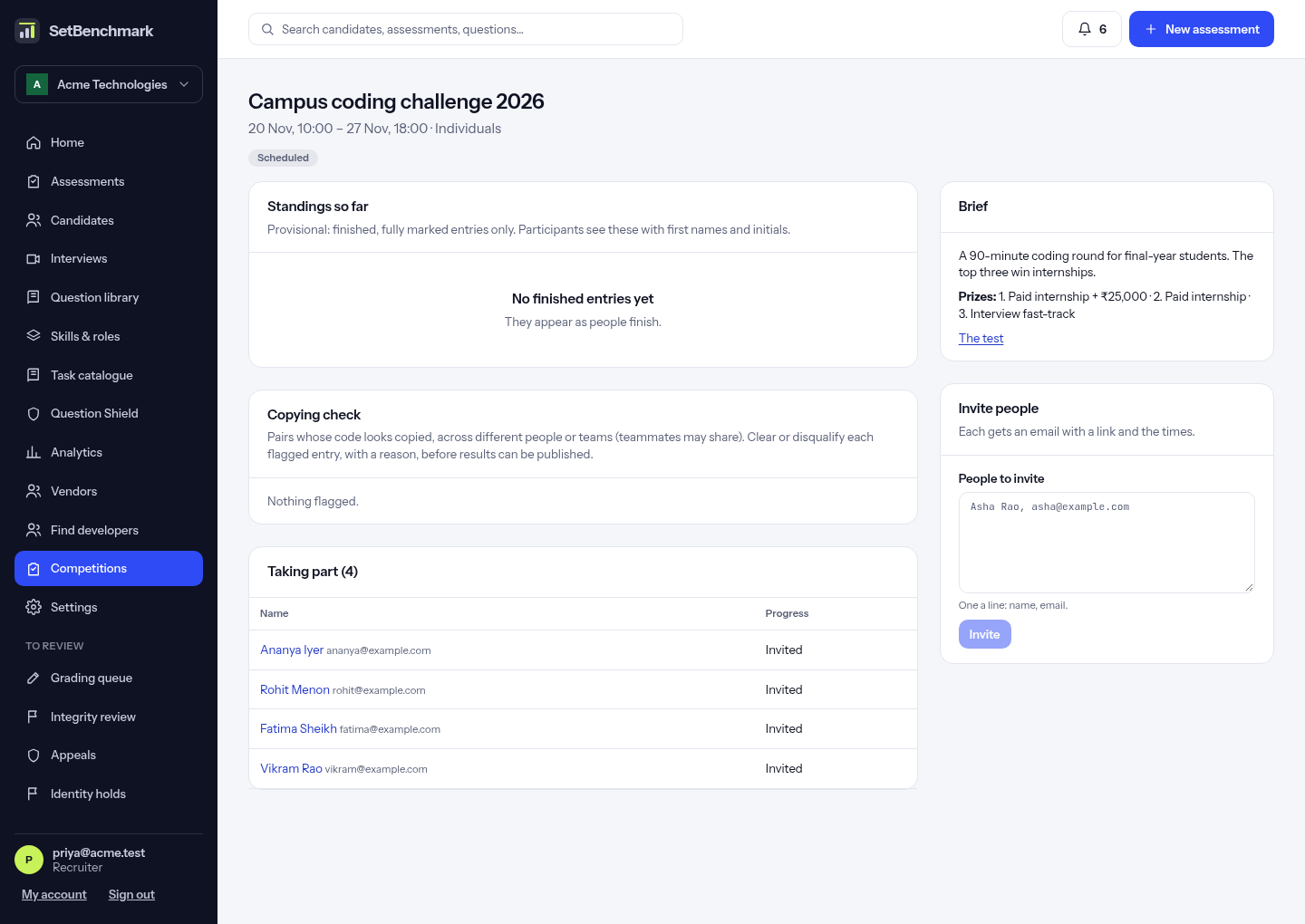
Click “Competitions” to run a coding competition or hackathon on one of your own tests: a campus drive, a hiring event or an internal contest. Choose a published test, the times it opens and closes, individuals or teams (2 to 10 people a team), and prizes by place. Or click “Draft with AI”: say what it is for and which skills, and the AI writes the name, summary, rules and prize ideas and picks library questions into a new draft test. A drafted competition shows “Waiting for approval”: check every question, publish the test, then click “Approve”. Nobody can be invited before that.
Open a competition and paste the people to invite, one a line: name, email (and team). Each gets an email with their link and the times. In team mode every member takes the test; a team counts as the average of its members and is timed by its slowest. Standings update as people finish; participants see them too, with first names and initials only, marked provisional.
Copying check: pairs of entries whose code looks copied (from different people or teams; teammates may share) are listed. For each flagged person choose Clear or Disqualify and give a reason; nothing is chosen for you. A disqualified member takes their team out. Once the competition has closed, every answer is marked and every flag is decided, click “Publish results”. Every finisher gets a signed rank certificate with a badge (Winner for first, Runner-up for second and third, Top 10%, or Finisher) and any prize for their place, by email. Anyone can check one at /awards/ and its code. Participants find the competition on their start page.
The developer community: practice, contests and certificates
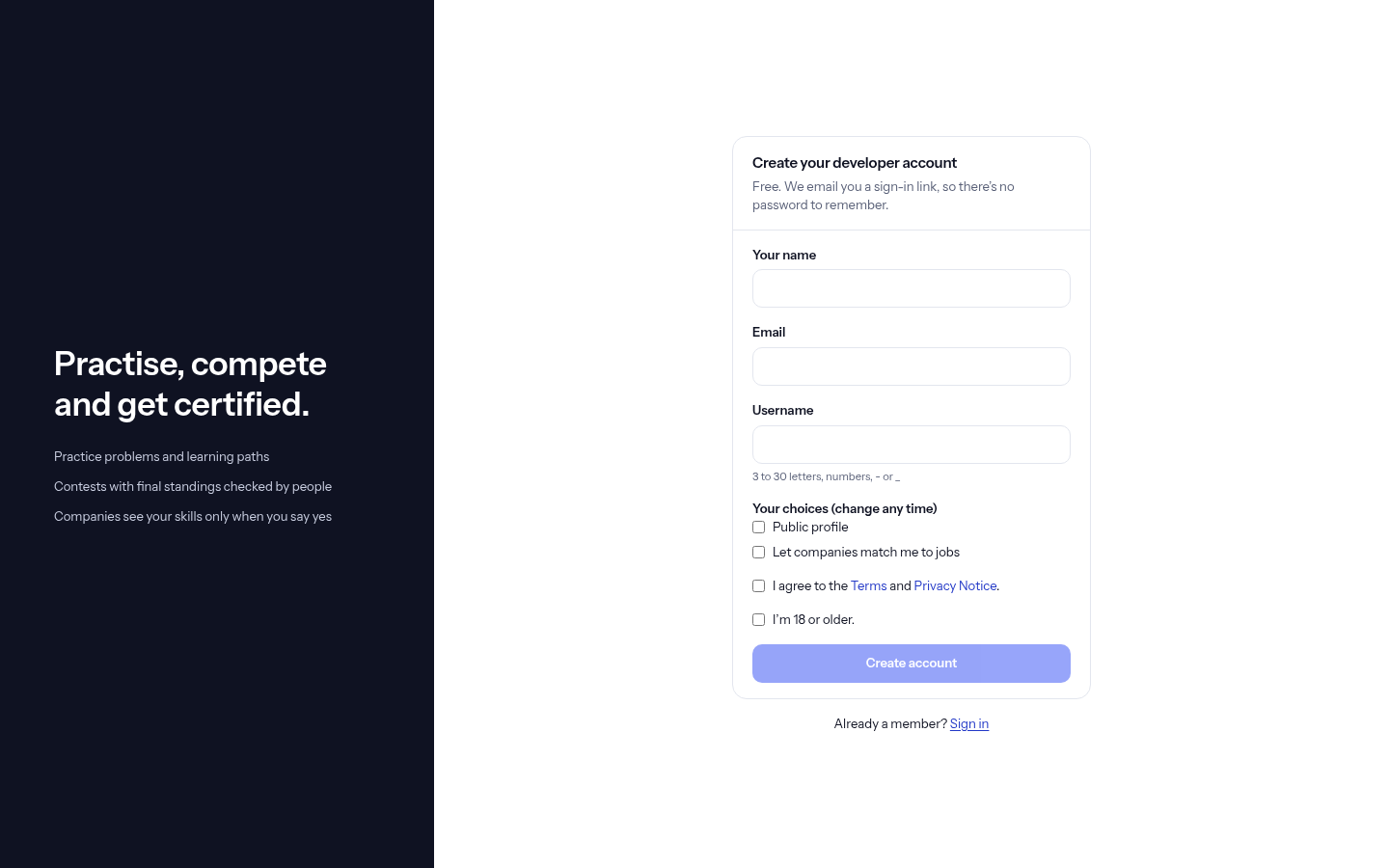
Anyone 18 or older can join for free at /dev/join on the community’s address, with a name, email and username. We email a sign-in link, so there’s no password. Practice problems, contests and exams are ordinary tests, and practice is separate from employer assessments: nothing goes to a company unless the developer says so.
Each problem, contest and exam can be taken once. While a contest runs, people who entered see provisional standings. Final standings appear after a person has checked them for copying (entries whose code looks copied are listed for them on the community page); then every finisher is emailed a signed rank certificate with a badge, listed under “Your rank certificates”. A person also reviews every passed exam before the certificate is issued. Anyone can check a certificate by its code at /certificates/ and the code.
Certificates are digitally signed (a W3C verifiable credential), so the check page says whether the signature is genuine, and an employer can check it themselves with the public key at /v1/public/passports/key. Exams use only questions written for the community, never the shared library that hiring tests use, so exam answers can’t be seen anywhere else.
Renewing: a certificate lasts as long as the exam says (two years unless set otherwise). We email you 30 days before it expires. From 60 days before expiry (or any time after), the exam shows “Renew: take it again”. Pass, and once a person has reviewed it you get a new certificate with a new code; the old one says it was renewed.
Your profile is private until you turn it on. On your profile page you choose who sees your name, verified skills, practice activity and contest ranks. Only certificates count as verified skills. “Your data” lets you download everything or delete your account.
Job matching for developers
Job matching is off until you turn it on. Companies then see your verified skills, location and notice period, but not your name. When one asks for an introduction you get an email and have 7 days. “Share my profile” gives them your name and email and makes you a candidate there. “Not now” needs no reason. Your minimum pay is private and only used to filter, and companies you hide never see you.
Using the AI assistant (tests that allow AI)
On a question that allows AI, the AI assistant sits under the question. The candidate is told to use it the way they would at work: reviewers look at how they plan, ask, check suggestions, test them and fix mistakes, not only at the final answer.
The note “What’s recorded” says what the company sees: the messages, the assistant’s replies, which suggested changes were applied or dismissed, and the test runs.
When the assistant suggests a change to the code, it shows “Suggested change” with how many lines it adds and removes. “Apply” puts it into the answer, “Apply and edit” does the same and brings the editor into view, and “Dismiss” leaves the answer as it is. The assistant has never seen hidden tests or answers.
Timed sections and extra time
In a test with timed sections, the top shows the section and its own timer. “Finish section” moves on; there is no going back. Some tests carry the time left over to the next section; the “Finish section” message says so.
If the company gives extra time, a green note says so: “We had a problem, not you”.
Submitting
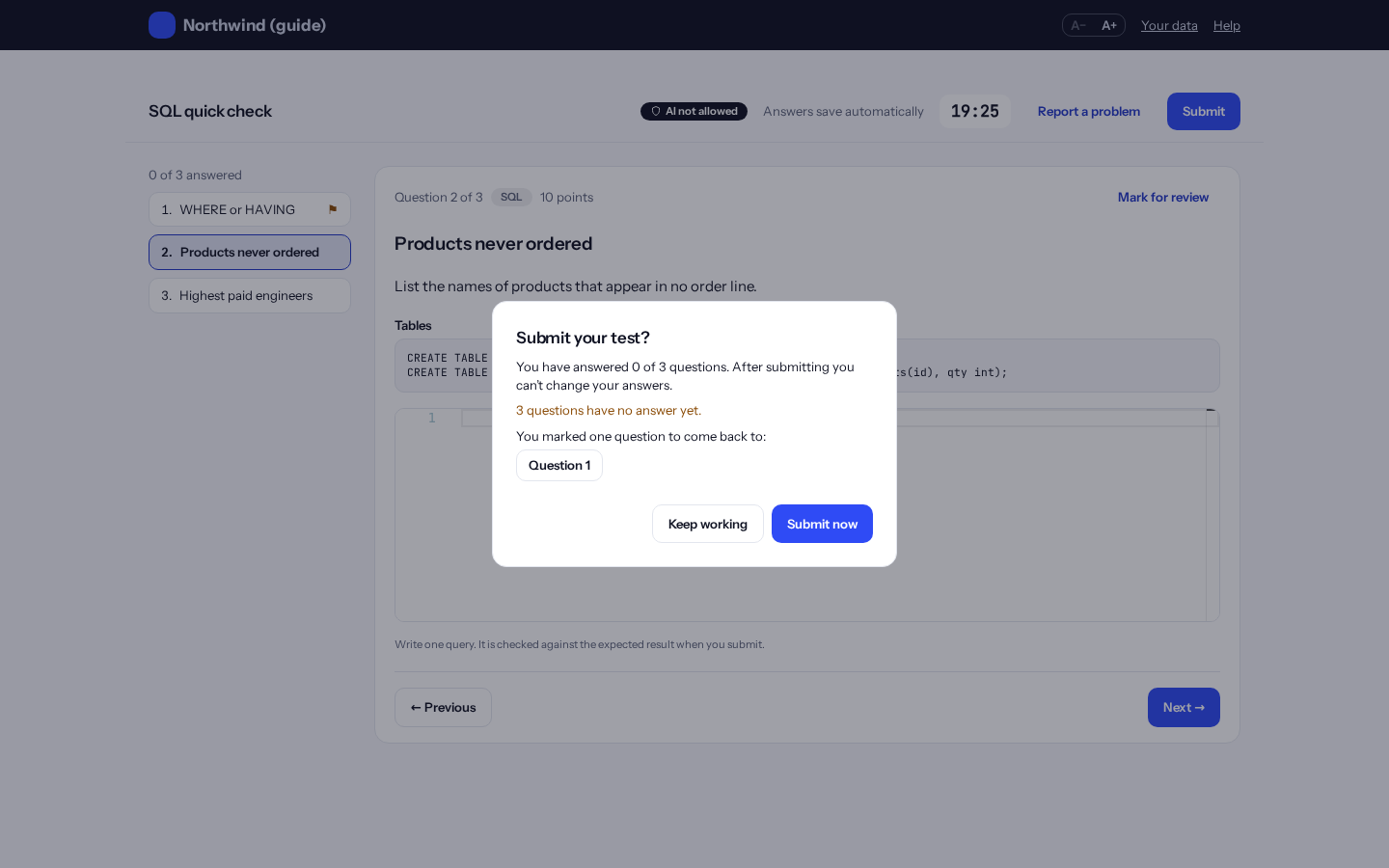
Before submitting, the candidate sees how many questions are answered and any marked for review.
Done
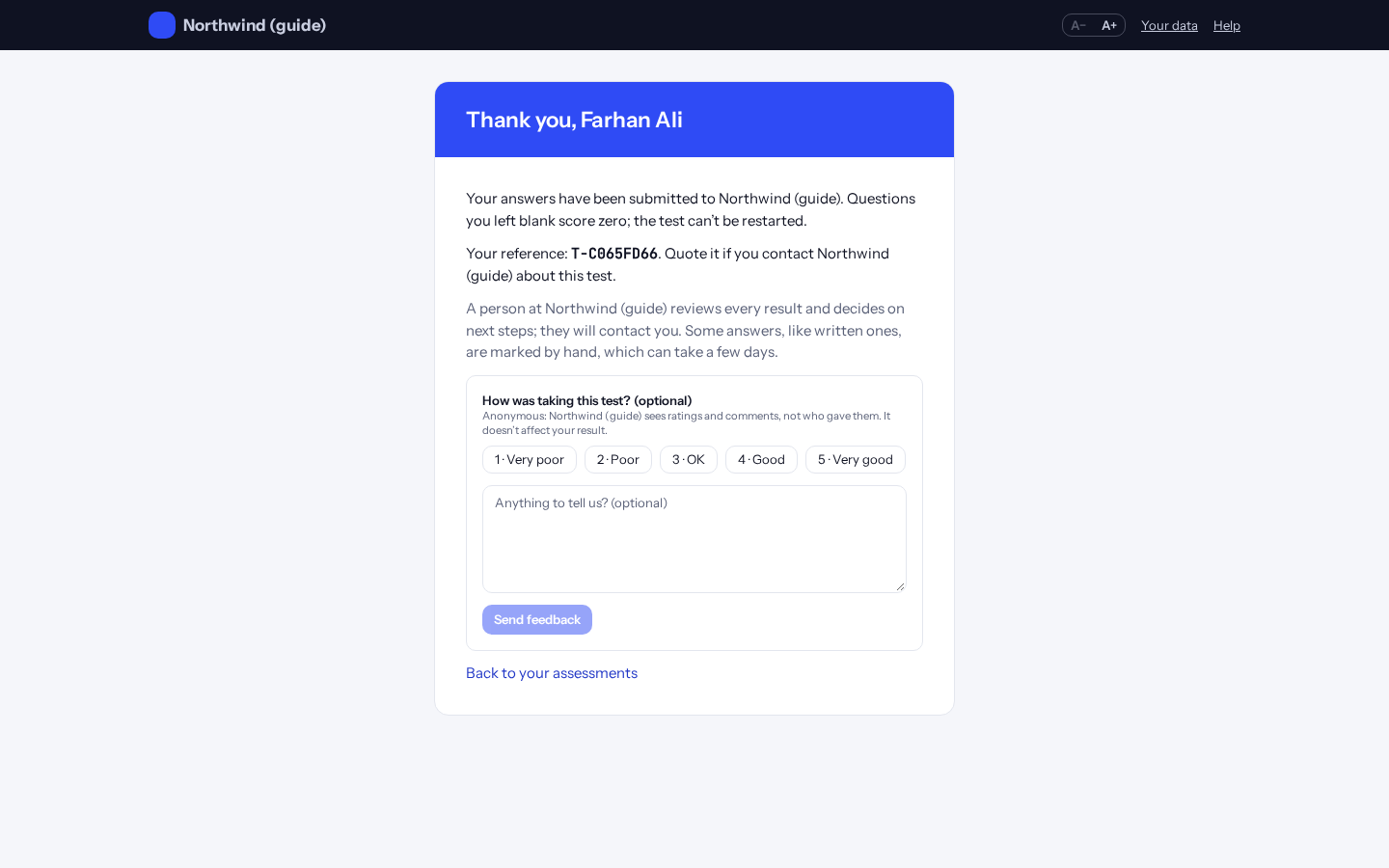
The candidate gets a reference number and can rate the test (anonymously). If time ran out, the page says the saved answers were submitted.
The optional equality survey
If the company has turned it on, the page after submitting a hiring test offers a short survey: gender, age band and where the candidate lives. Every question has “No answer” and “Prefer not to say”, and “Skip” closes it.
The page tells candidates that the answers are kept apart from their result: nobody deciding on their application sees them, they never change the score, and they are only counted in groups of 30 or more to check that tests are fair.
An AI interview
Some companies ask for an AI interview: a conversation with an AI interviewer, typed or spoken. The candidate is told it is an AI, and a person at the company reads it and decides.
To answer by voice, they press “Start answering”, speak, then “Stop”. The words are written out for them to check and correct before “Send answer”. In Chrome and Edge the words appear while they speak; in other browsers, such as Firefox and Safari, they appear after “Stop” (when the company’s plan includes speech). They can always type instead.
AI avatar: a video face for the AI interview
When Kombee has switched on the avatar service, candidates can also choose “I agree, start with the video interviewer”. A video face says each question aloud, and they answer by speaking, as in a voice interview. The screen always says “AI interviewer, not a person”.
The avatar only says the interviewer’s own questions, word for word: it never makes anything up. The candidate’s camera stays off and only their spoken answers are recorded. If the video can’t connect, the questions are read aloud instead and the interview carries on. If the sound doesn’t start, they click “Turn on the interviewer’s sound”.
Practice: problems to warm up on
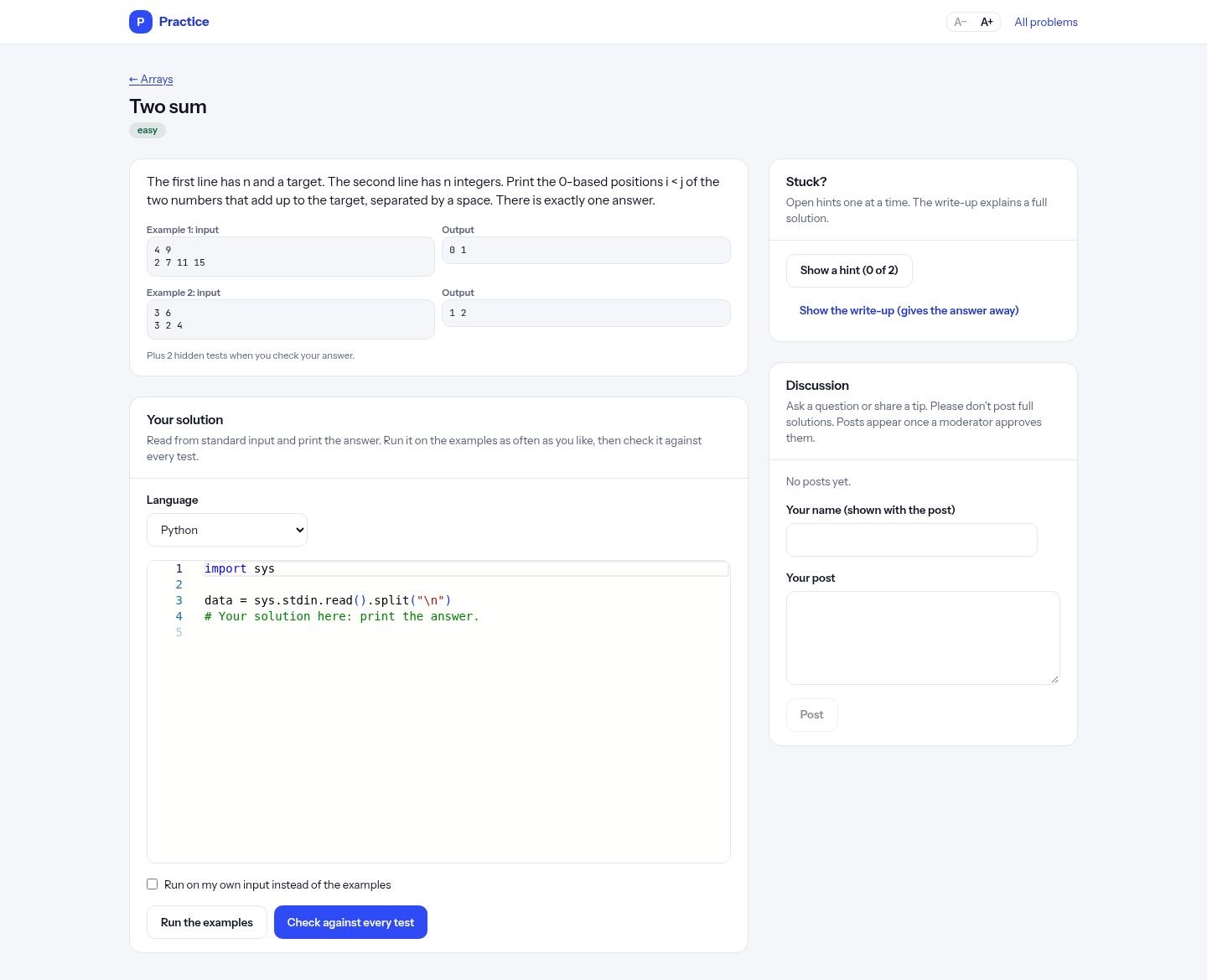
Candidates can practise before the test, and anyone can practise at /practice on the candidate site, with no account: candidates find it through “Practise first” on their home page, and developers in the community through Practice. Nothing done there is seen by employers.
Choose an area, difficulty or kind (code or multiple choice). In a coding problem, write a solution in Python, JavaScript, TypeScript, Java, C++, C# or Go, click “Run the examples” (or tick “Run on my own input”), then “Check against every test”. Examples show the expected and actual output; hidden tests show only whether they passed. Try as often as you like.
“Show a hint” opens hints one at a time. “Show the write-up” explains a full solution. Questions and tips go under Discussion; they appear once a Kombee moderator approves them. Progress is kept in the browser, so clearing its cookies starts afresh.
Tip: “You can run code 60 times an hour” means a short break is needed. If practice says it has reached its daily limit, it opens again the next day; tests are never affected.
Mock interview: rehearse and get feedback
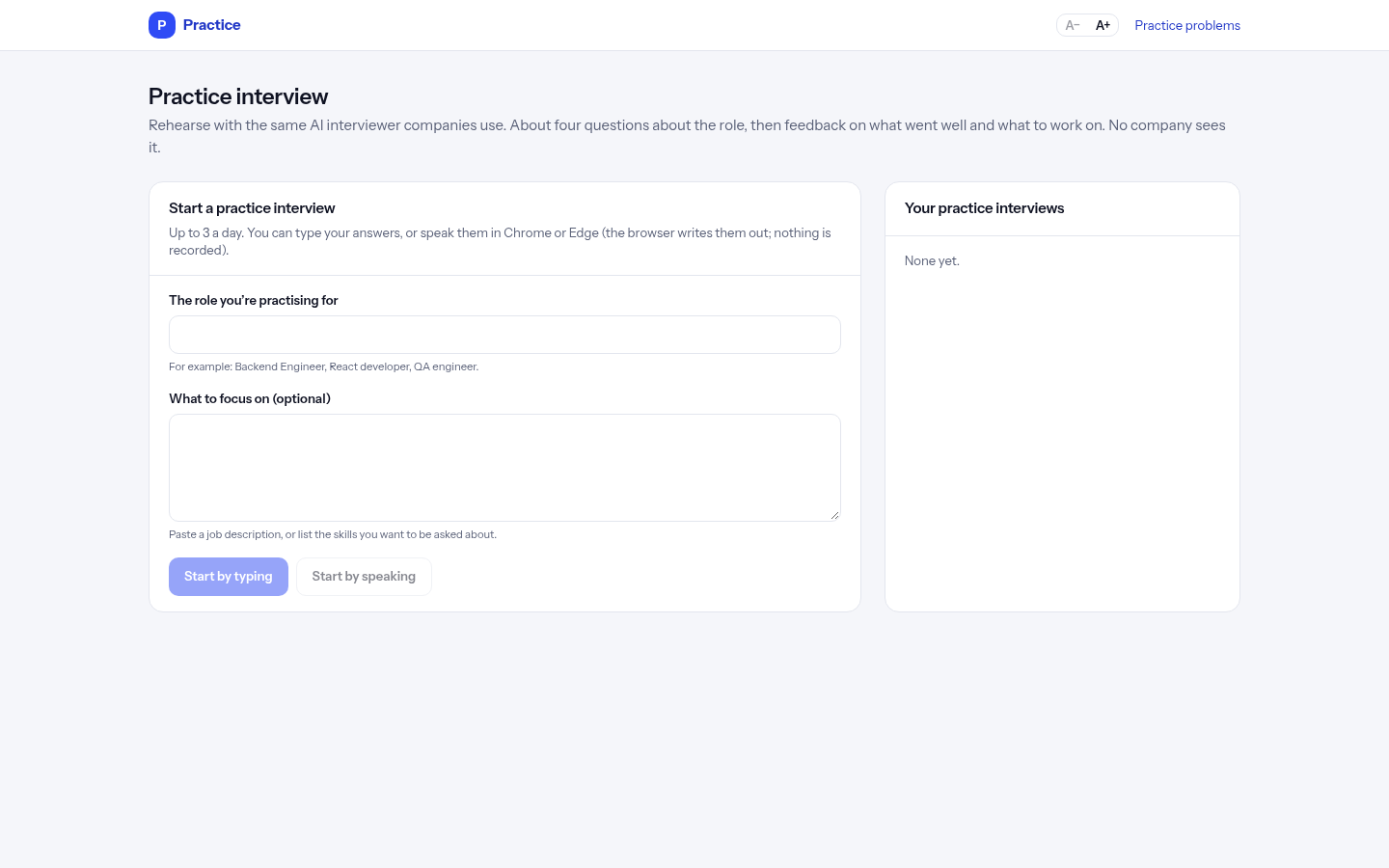
From Practice, click “Practise an interview”. Type the role you are practising for and, if you like, paste a job description or the skills to be asked about. Click “Start by typing”, or “Start by speaking” in Chrome or Edge (the browser writes your words out for you to check; nothing is recorded).
The same AI interviewer companies use asks about four questions. At the end you get feedback: a short summary, what went well, what to work on, and a rating per area. No company sees practice interviews, and nothing is decided. “Stop here” ends one early, without feedback.
Up to 3 practice interviews a day for each browser; your earlier ones are listed on the same page.
Their data
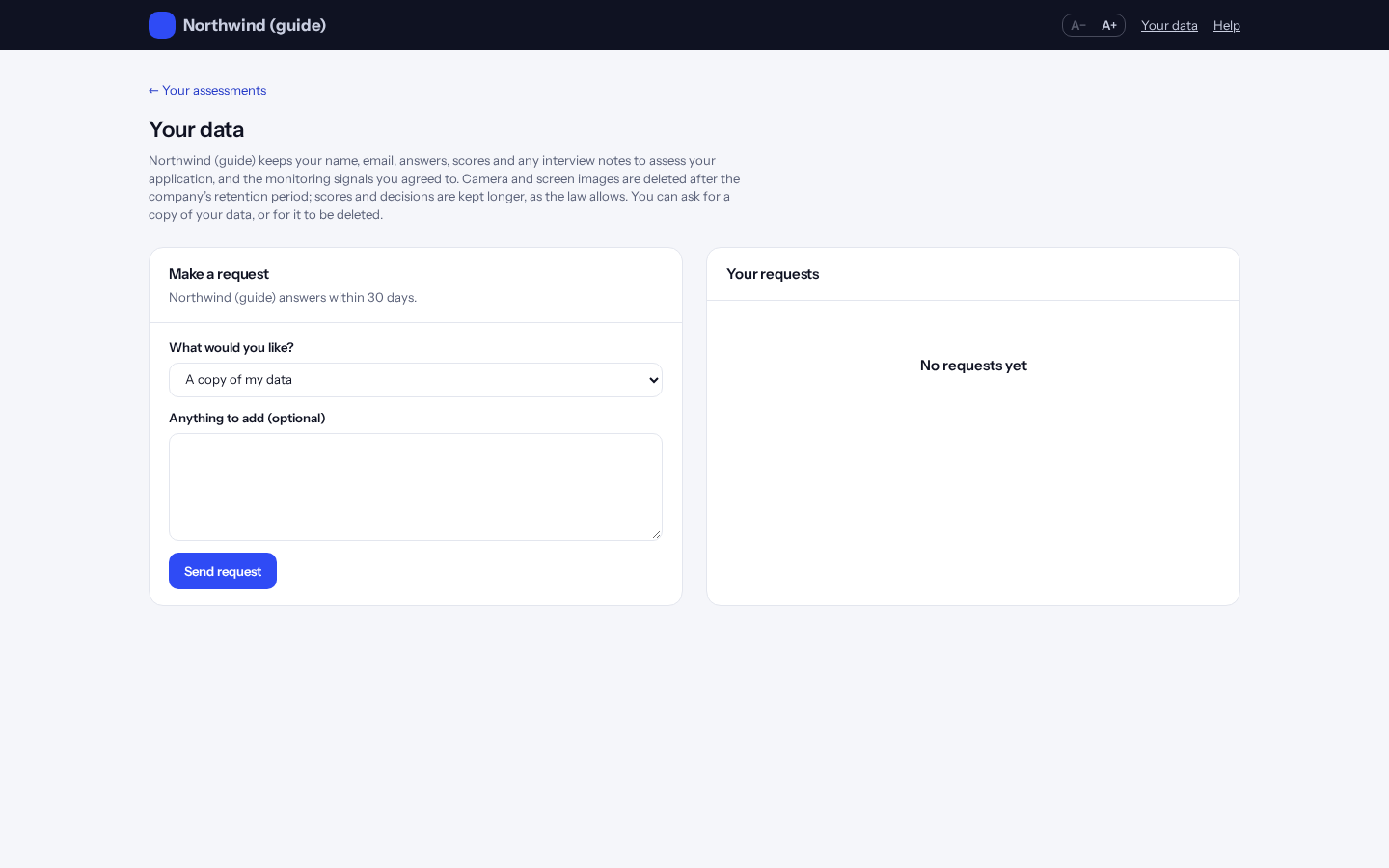
Under “Your data” candidates can ask for a copy of their data, or for it to be deleted, and follow their requests.
Help
Answers to common questions, such as what to do if the connection drops.