4. Candidates and decisions
Everyone applying, their results, and the hiring decision.
On this page:
- The candidate list
- Saved views
- A candidate’s page
- Making the decision
- The timeline
- Comparing candidates
- Legal hold
The candidate list
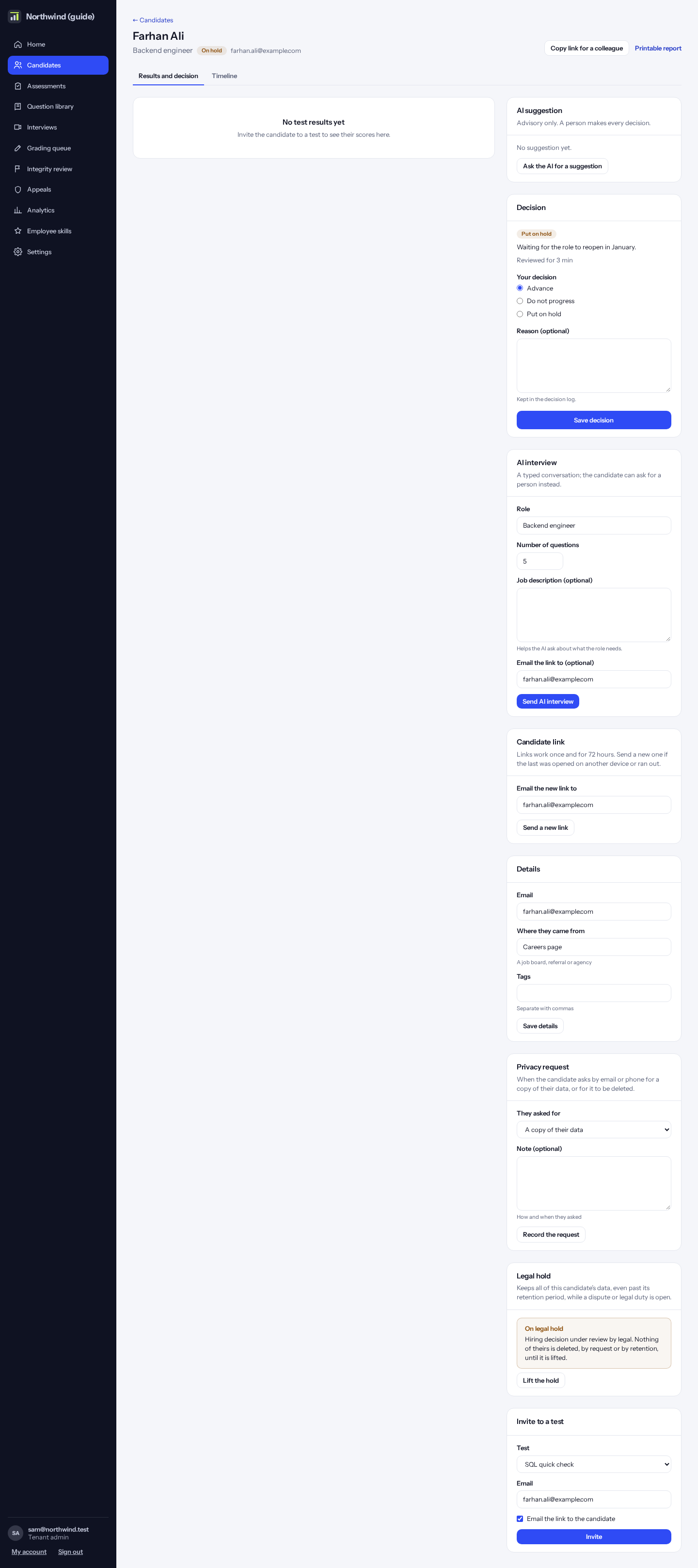
Click “Candidates”. Click “Add a candidate” at the top right and give their name, role and email.
Search by name or email, and filter by status, role and tag. Tick candidates to compare them side by side, or to advance several together.
Saved views
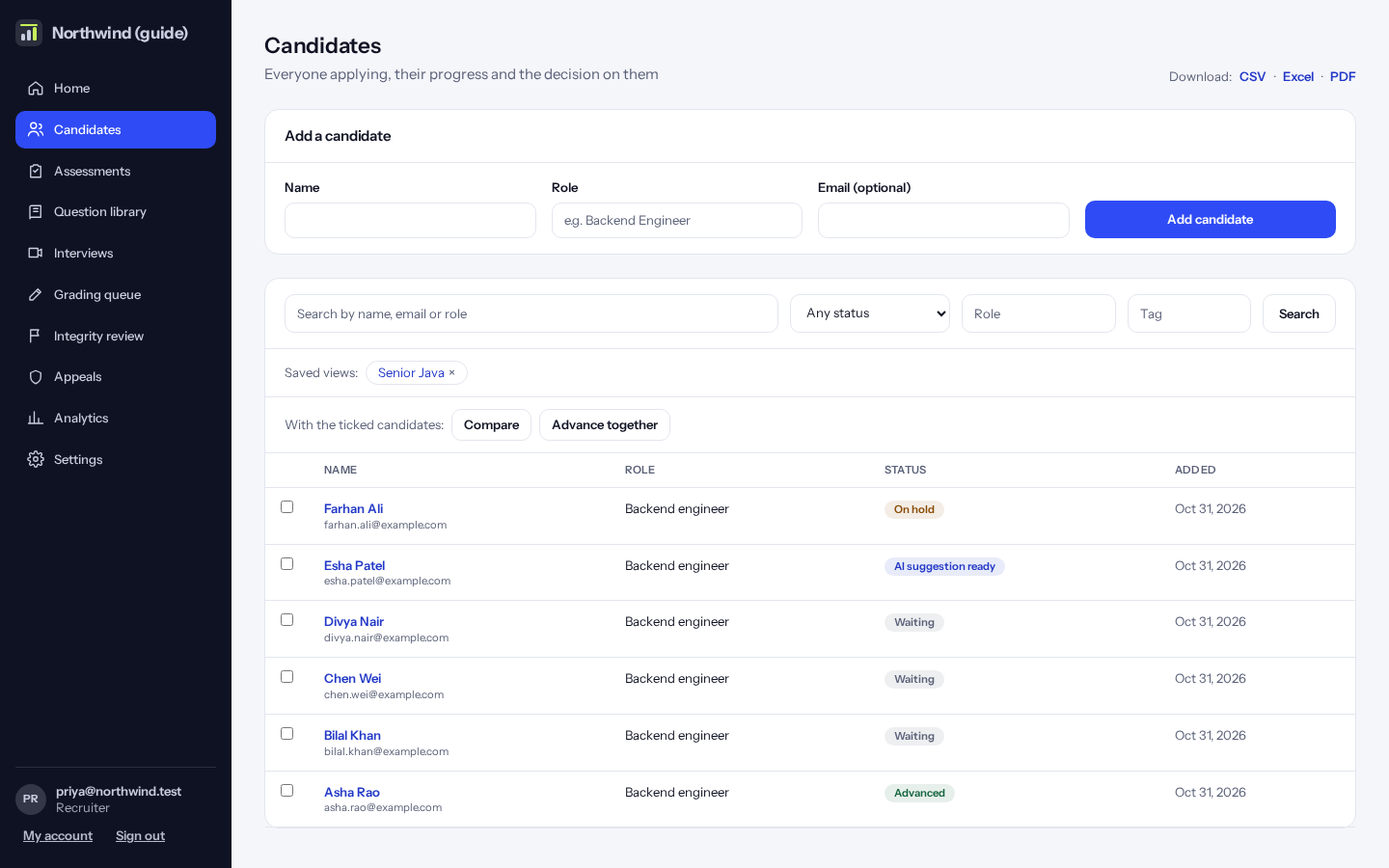
If you often use the same filters, save them as a view. Type a name and click “Save this view”. Your views appear above the list; click one to open it. Only you see your views.
A candidate’s page
The “Resume” card on the right (click it to open) holds the candidate’s resume: upload a PDF or Word file (up to 5 MB), replace or remove it, or click its name to download it. Interviewers find it on the interview page too. It’s deleted with the rest of the candidate’s data.
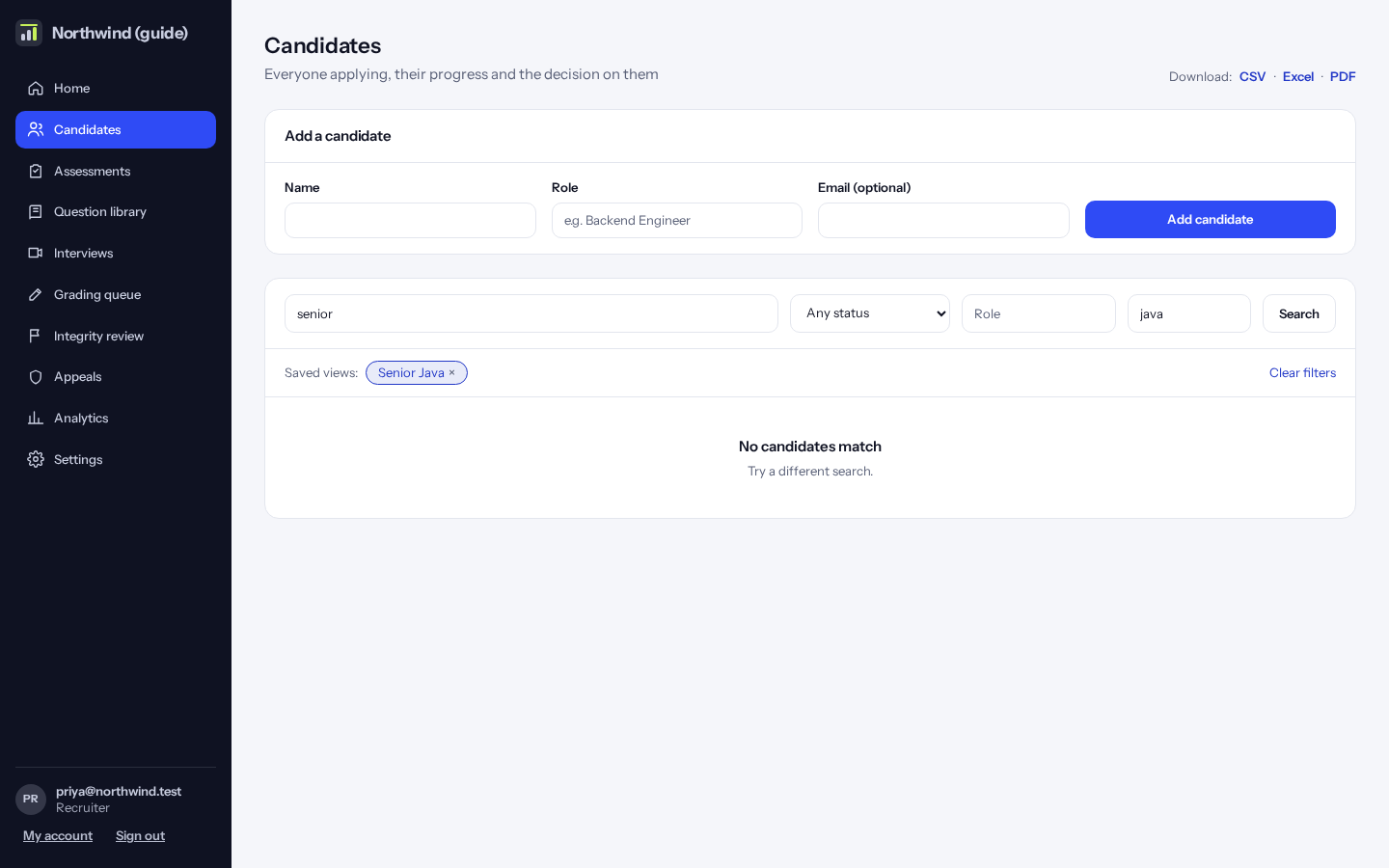
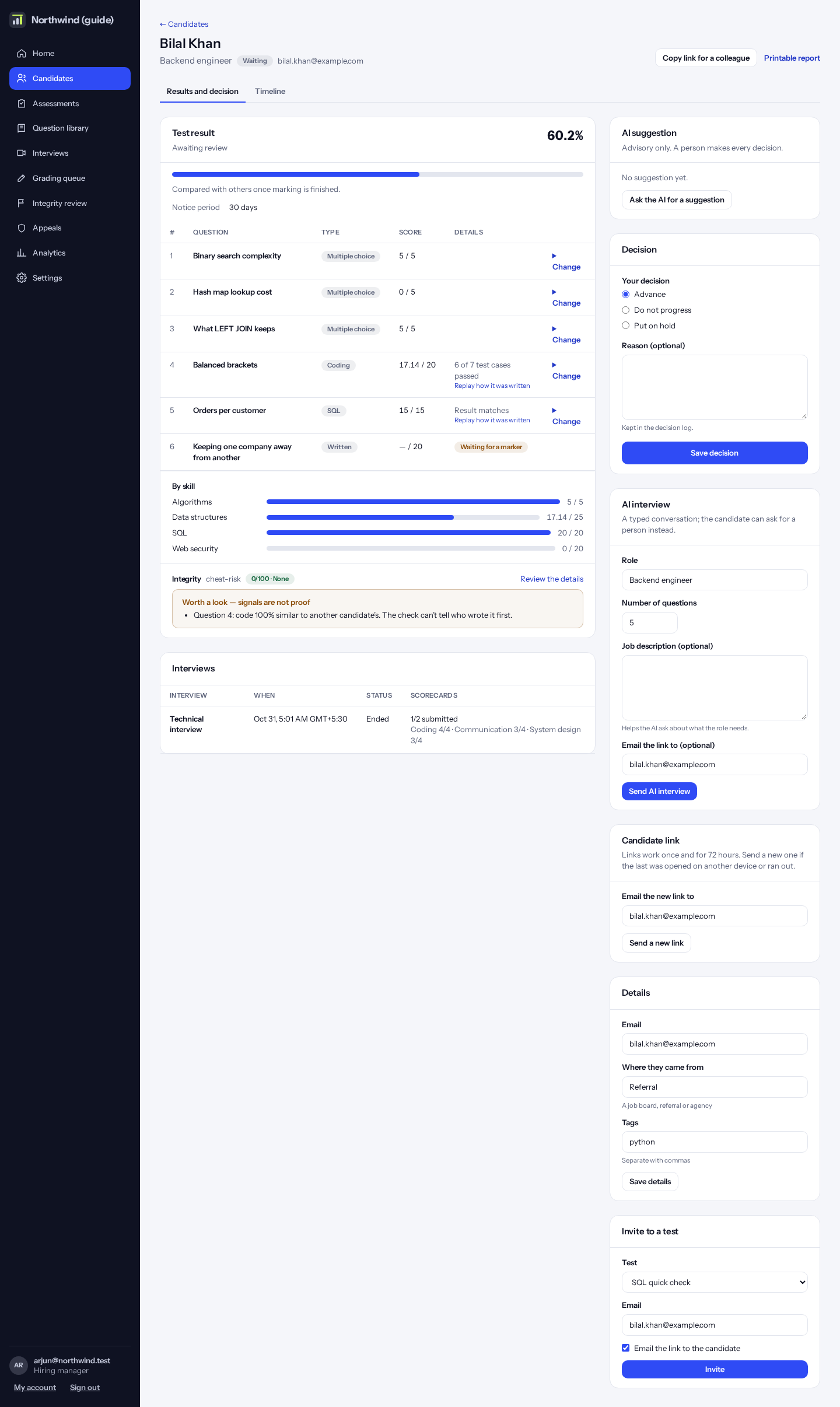
Open a candidate to see their test results question by question, by skill, how they compare with others, integrity notes, problems they reported, and how they used AI (if allowed).
On the right: the decision and the AI’s suggestion (advice only). Under them are folded cards: click one to open it, for example Resume, Candidate link, Details, Privacy request, Legal hold or Invite to a test.
Tip: Click “Replay how it was written” to watch a coding answer being typed. It plays at the candidate’s own pace: choose 1×, 2×, 4× or 8×, and keep “Skip idle time” on to jump over long pauses. Pauses of a minute or more are marked “idle” in the list of saves.
Tip: Under each result you also see how much of the test’s time the candidate used, for example “Used 18 of 60 minutes (30%)”. “Schedule an interview” opens the interview form with this candidate already chosen.
Tip: “Copy link for a colleague” gives a link that only signed-in colleagues can open.
Making the decision
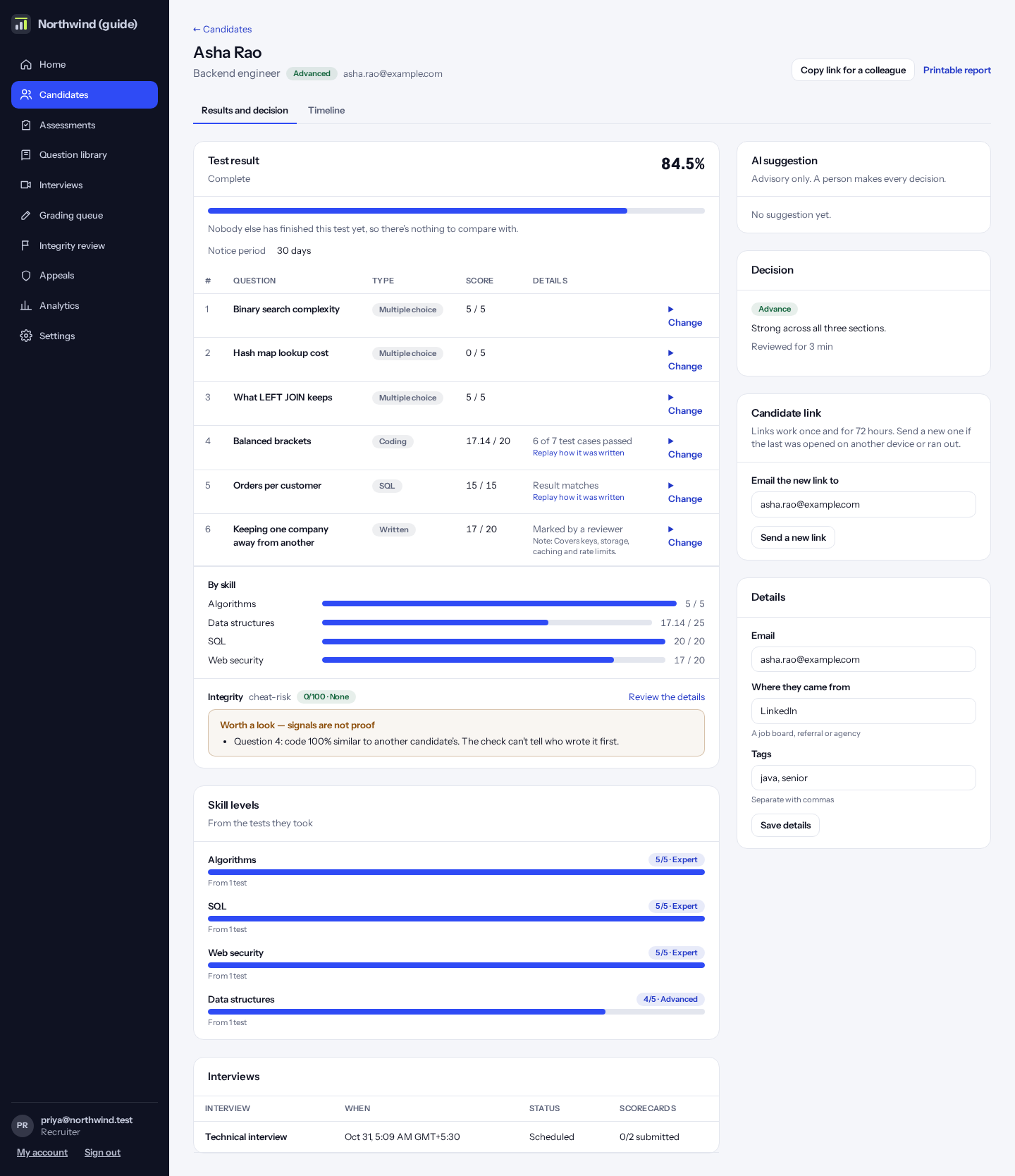
The AI can suggest advance, hold or reject, with its reasons. It is only advice: a person always decides.
Choose “Advance”, “Hold” or “Reject” yourself: nothing is selected for you. Every decision needs a reason. Every decision is kept in a tamper-evident log.
The timeline
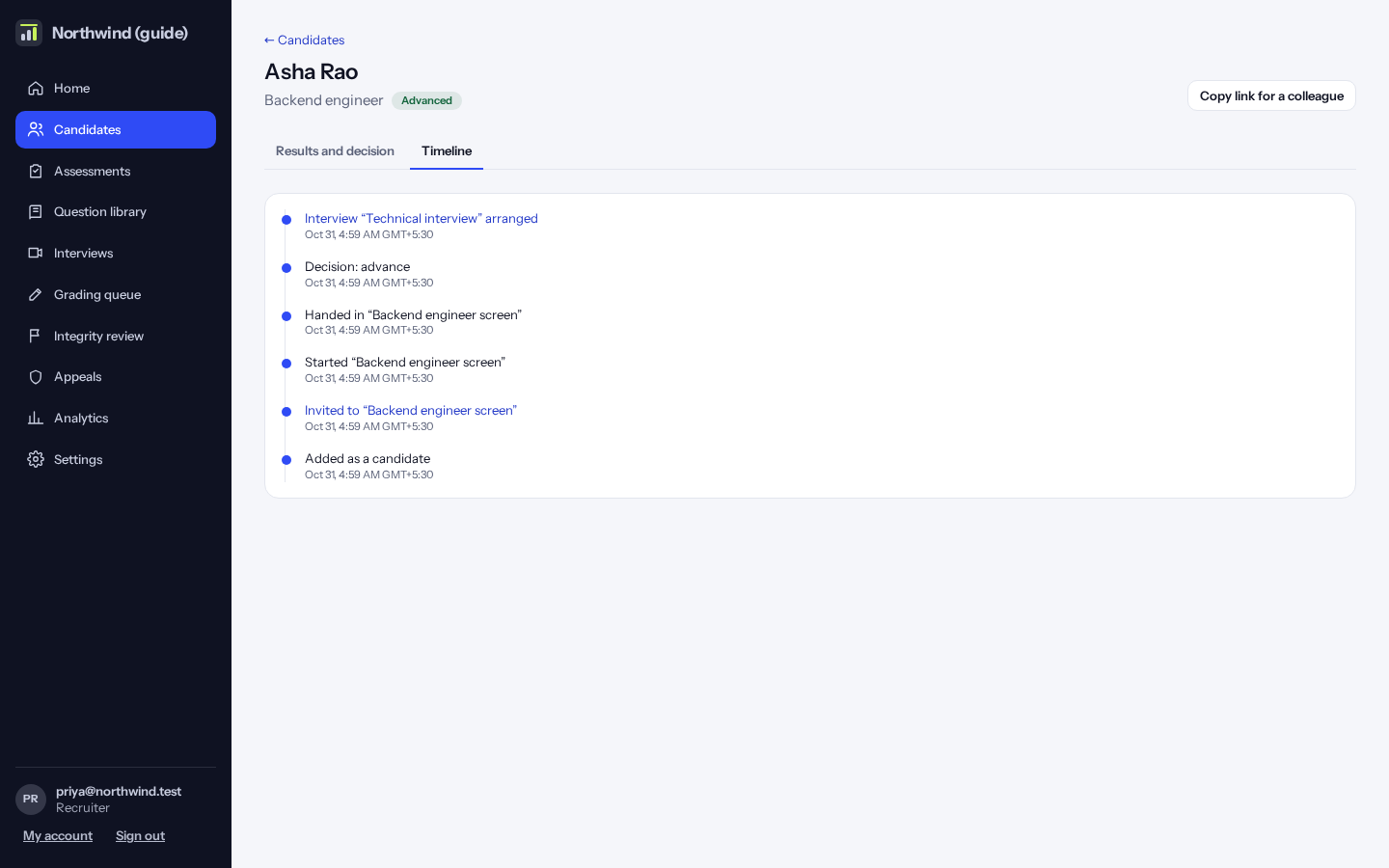
The “Timeline” tab shows everything that happened to the candidate, newest first: added, invited, started, handed in, AI suggestion, decision, interviews, appeals.
Comparing candidates
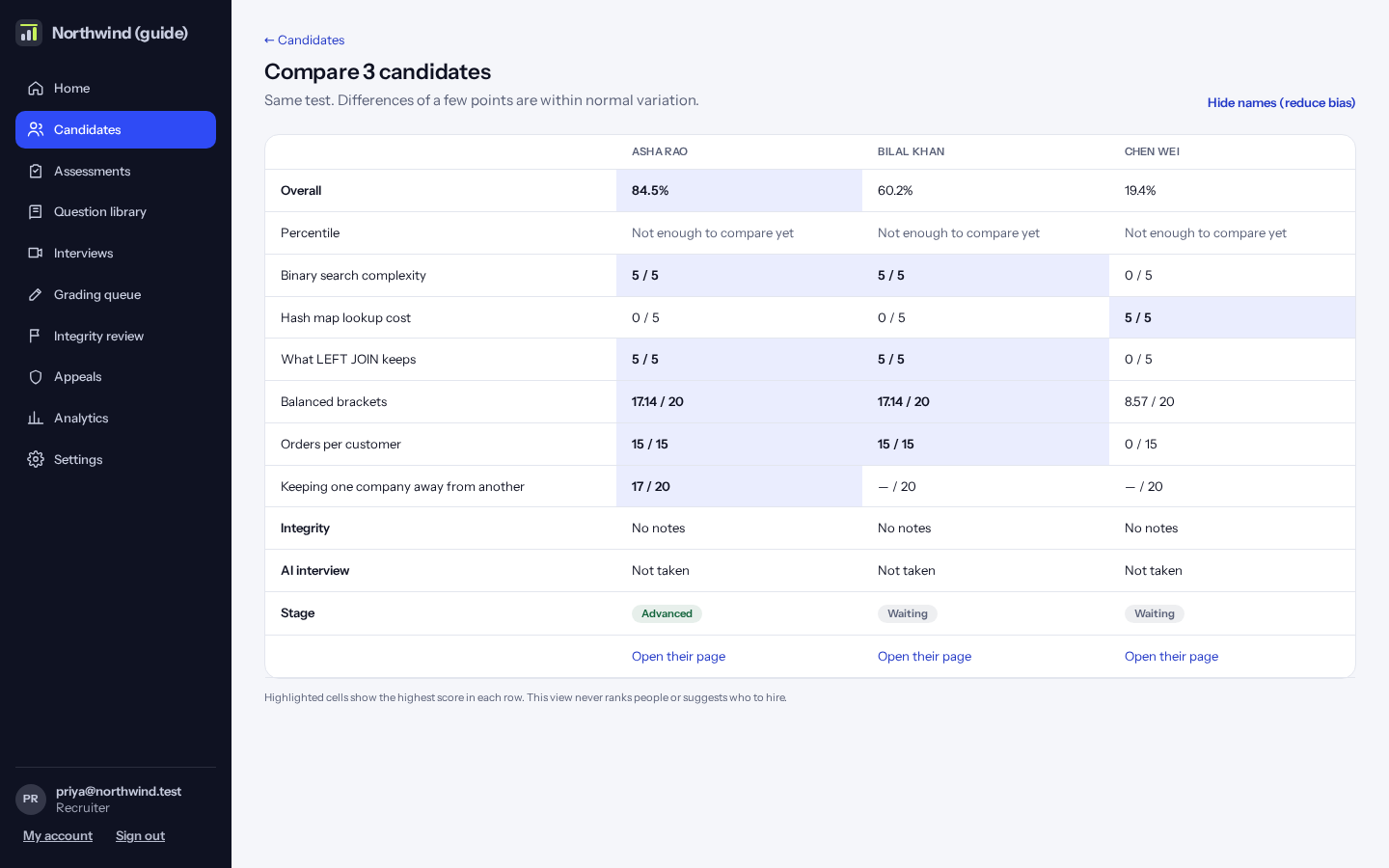
Tick two to five candidates in the list and click “Compare” to see their scores side by side.
Legal hold
If there is a dispute or a legal duty to keep someone’s data, an admin can place a legal hold on the candidate’s page. While it is on, nothing of theirs is deleted, not even by their own request or the retention periods. Lift it when the matter is closed.