8. Employee skills
Testing your own people. Kept fully apart from hiring.
On this page:
- Bench: people between projects
- Sharing a bench employee’s skills, and importing demand
- Bench: matching people to client demand
- Internal tests
- Results
- Certificates
- Talent directory
- Team skill map
- For employees: my tests
- For employees: my skills
Bench: people between projects
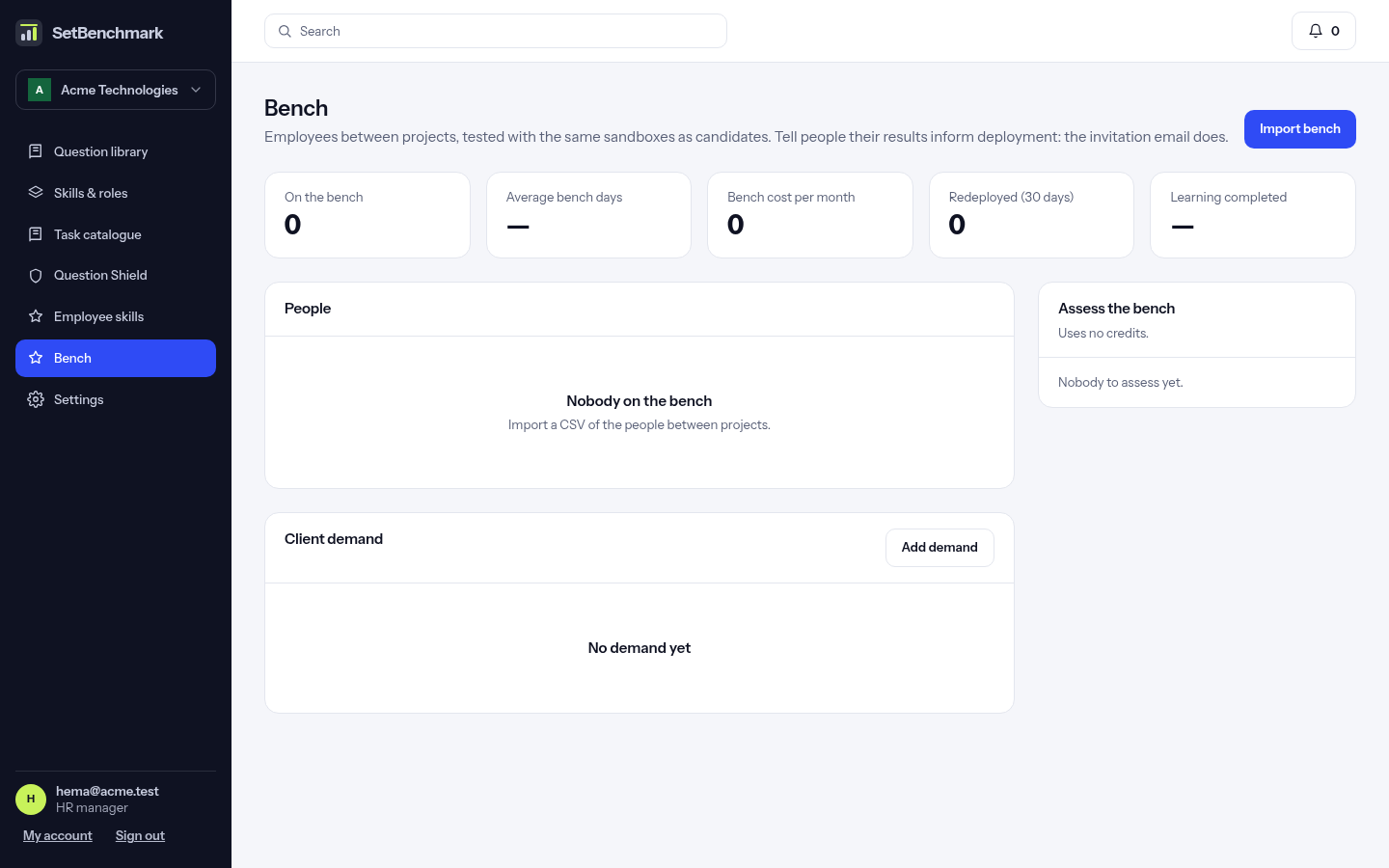
HR managers click “Bench”. The top shows how many are on the bench, average bench days, cost per month, people redeployed in the last 30 days and learning completed.
Click “Import bench” and choose a CSV with employee_ref, name, email, role, location, bench_since, cost_month, skills. Skills listed here show as “Stated”: they don’t count until tested.
Under “Assess the bench”, pick an internal test, tick the people (nobody is ticked for you), tick the confirmation that each person will be emailed, then click “Send the invitations”. It’s free up to 4 tests per person in any 12 months; past that, the message after sending names who will use a credit. Anyone without an account gets one, and everyone is emailed what the test is for and that they’ll see the result.
Under each person, “Give learning” sets something to learn and a re-test date. Choose a test for an automatic re-test: they’re invited when they mark it done on My skills.
Sharing a bench employee’s skills, and importing demand
On the Bench page, “Share skills” makes a link for a client to one person’s verified skills. Each skill shows how long it stays valid: 12 months from the test. The page carries a signed credential a client can check. If the person has hidden their levels in My skills, the link shows no skills. It shows their name, role and verified skills under your company’s name or Passport brand, and never their cost or email. It works for 30 days, the address is shown once, and a new link replaces the last one.
To add many client requests at once, click “Add demand” and import a CSV file with the columns client, role, location, start_date and skills, written like AWS:70;Go:60.
Add available_from and visa to the bench file and matching takes them into account: a match says when someone is free only after the client’s start date, and shows their work rights.
Bench: matching people to client demand
Under “Client demand”, click “Add demand”. Type the skills with levels, like AWS 70, SQL 50, or paste the client’s request for AI to pick them out. Check what it found.
Click “Matches” to see everyone on the bench, best fit first. Fit uses tested skills only, and each row says why: for example “AWS gap 22 points”, with a suggested path.
Click “Assign” or “Decline”, and “Deployed” when they start: that takes them off the bench and counts as a redeployment.
Internal tests
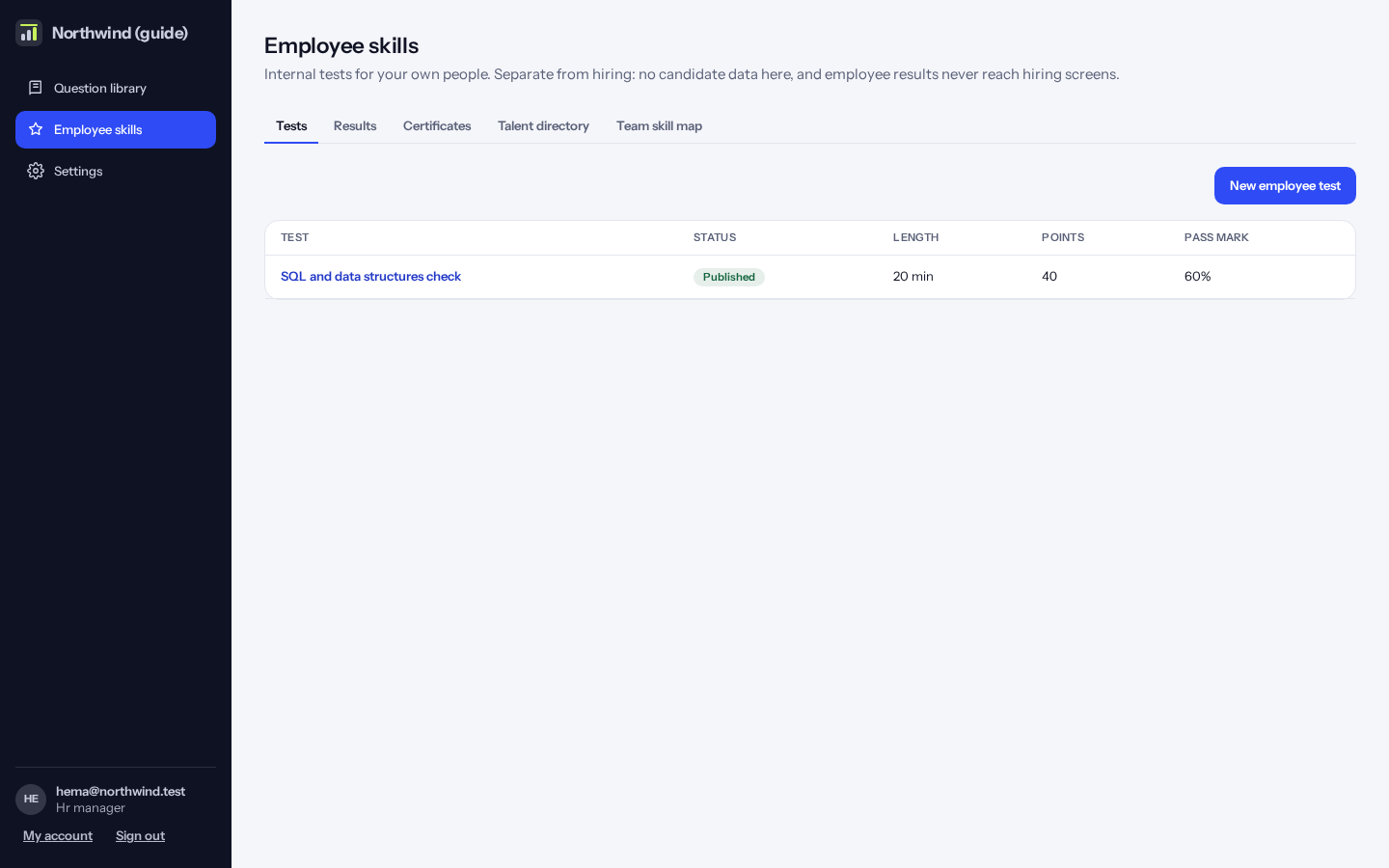
HR managers click “Employee skills”. Build internal tests the same way as hiring tests, then invite employees.
Results
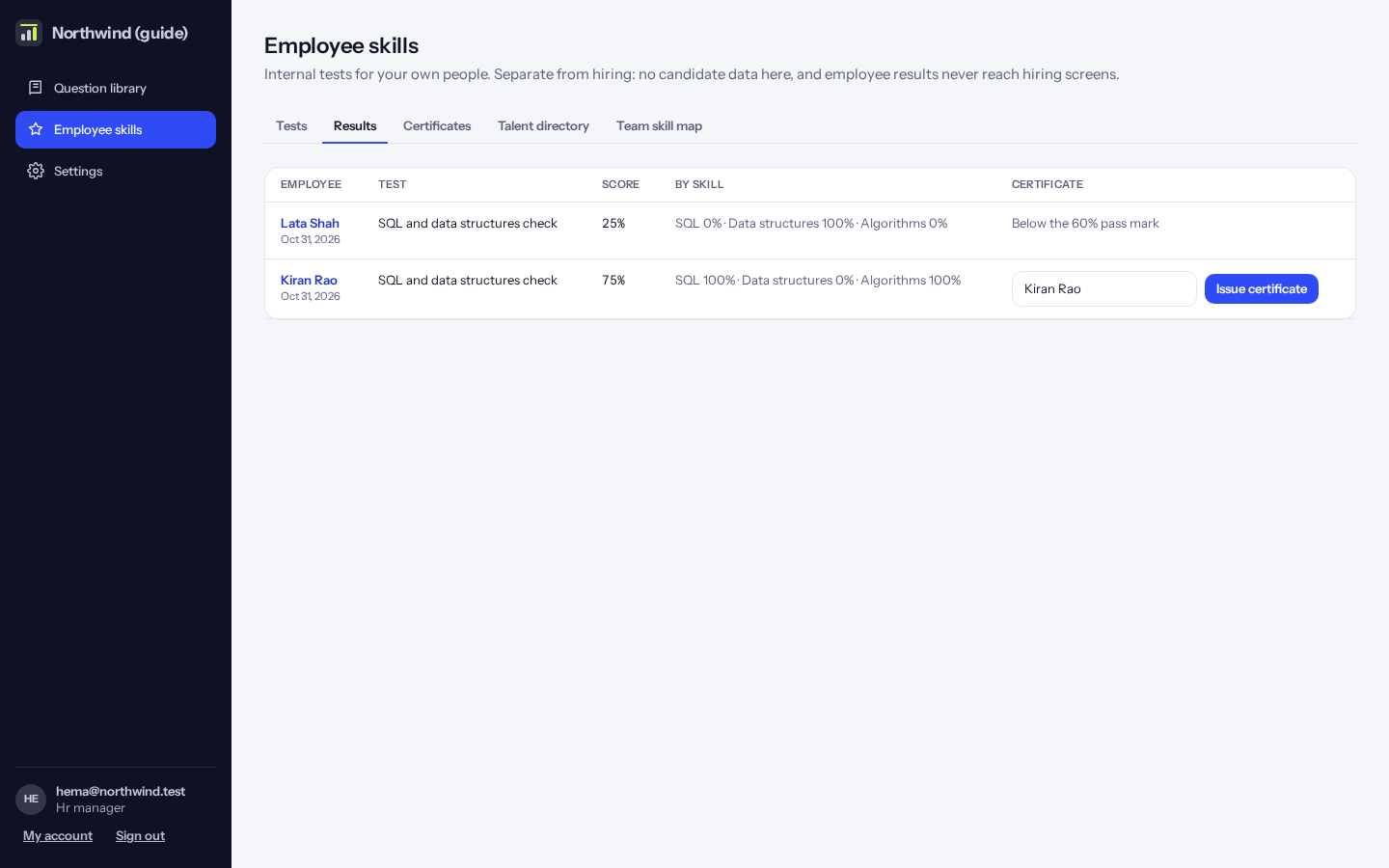
Every employee’s result, with their score. Open one to see the details.
Certificates
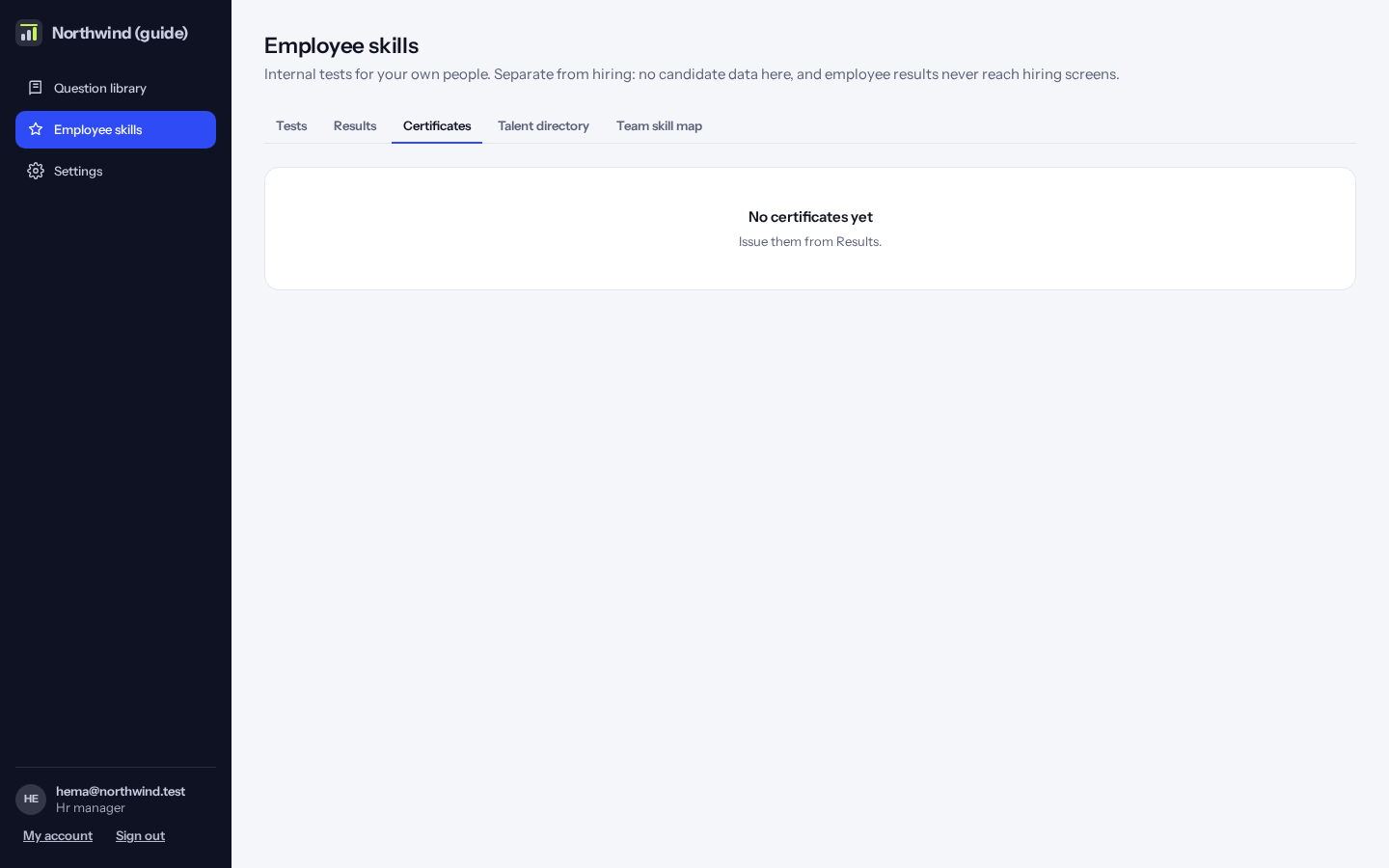
Employees who reach the pass mark can get a certificate. Each has a link anyone can use to check it is real. You can withdraw a certificate with a reason.
Talent directory
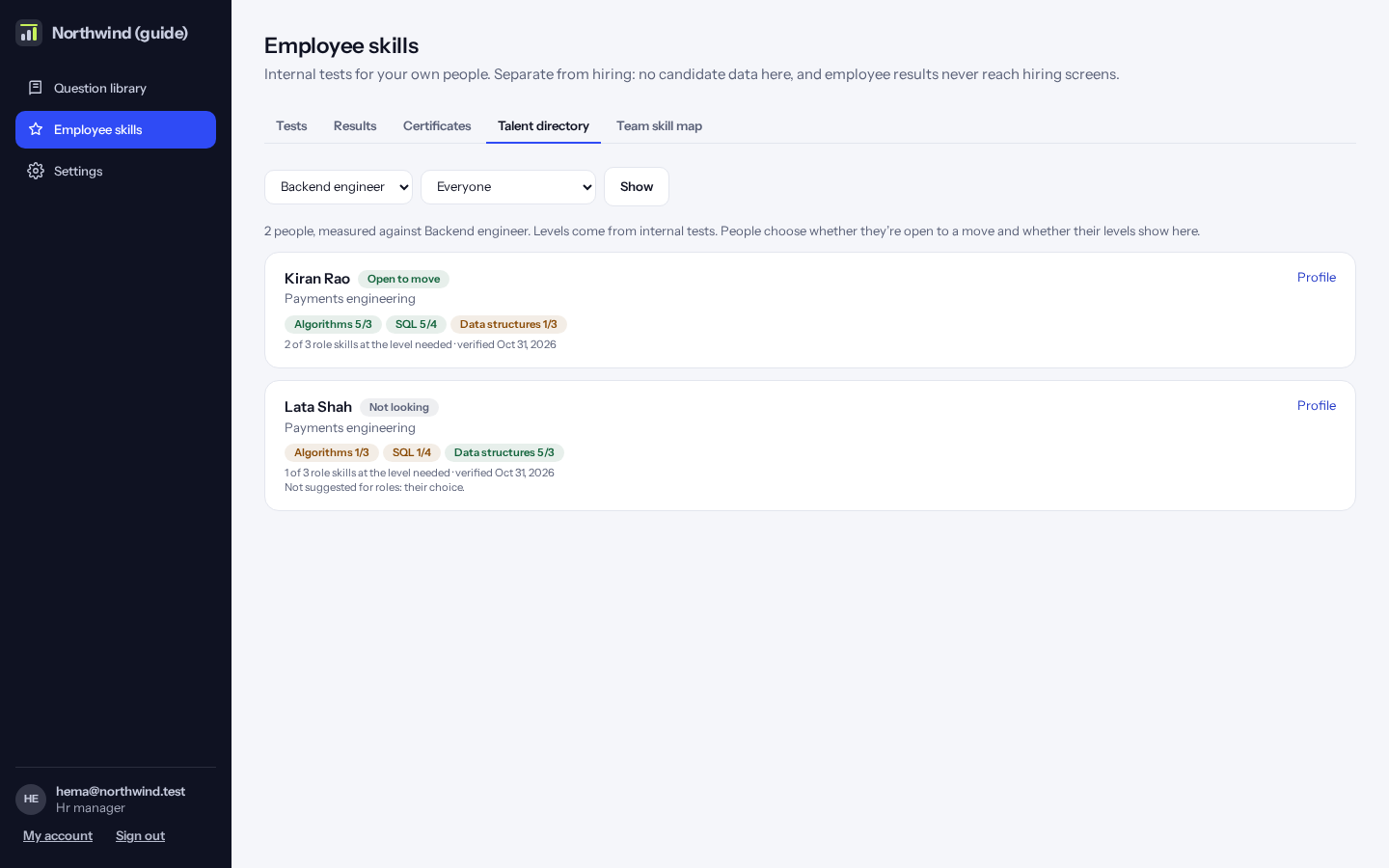
See your people and how their verified levels fit a role. People choose whether they are open to an internal move, and whether their levels show here. Those who keep levels private show as hidden.
Team skill map
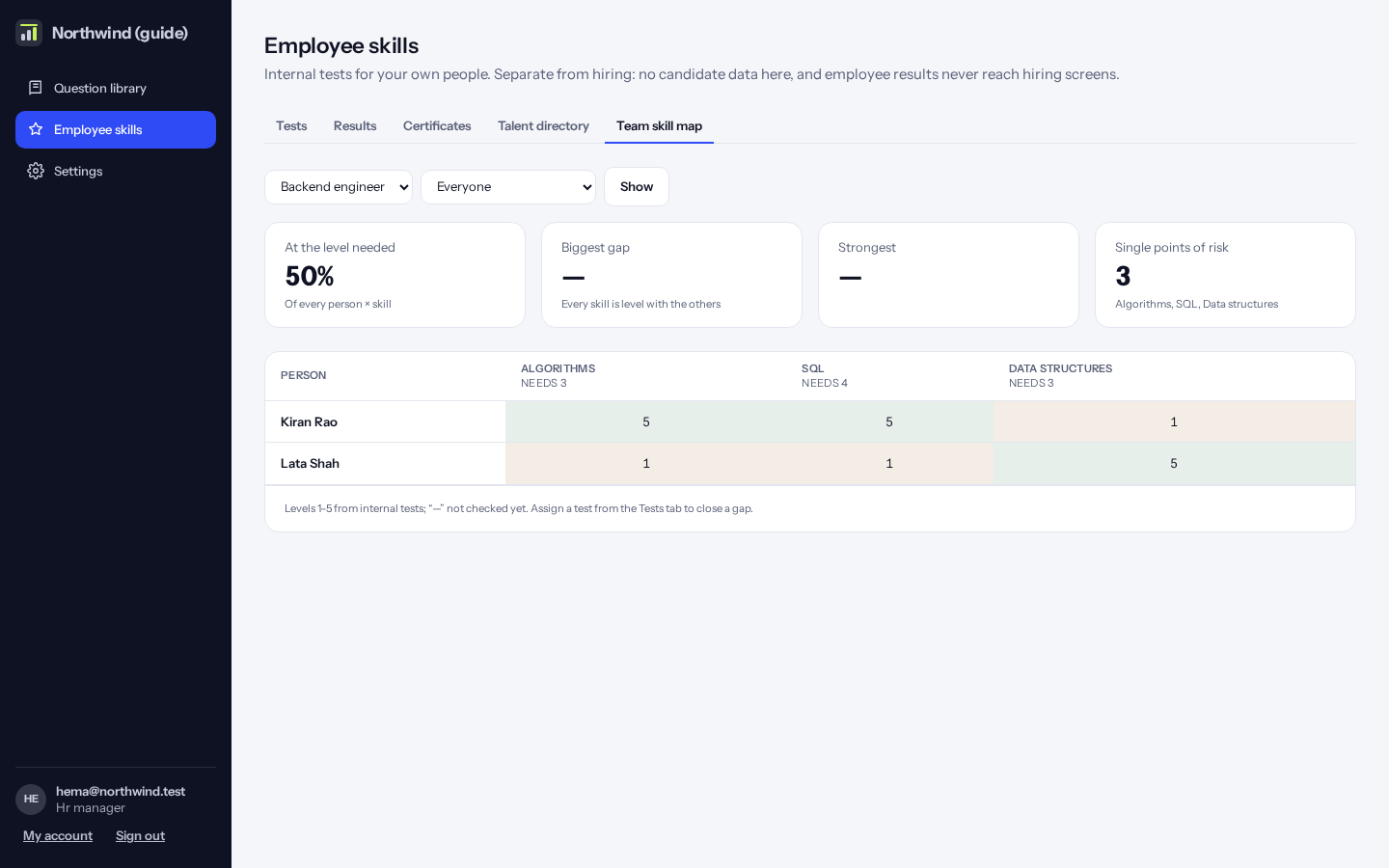
Choose a role and a team. The grid shows each person’s level (1 to 5) in each skill, next to the level the role needs. Green is at the level, amber below.
The numbers at the top show how much is at the level needed, the biggest gap, the strongest skill, and skills only one person has.
Tip: To close a gap, assign an internal test from the “Tests” tab.
For employees: my tests
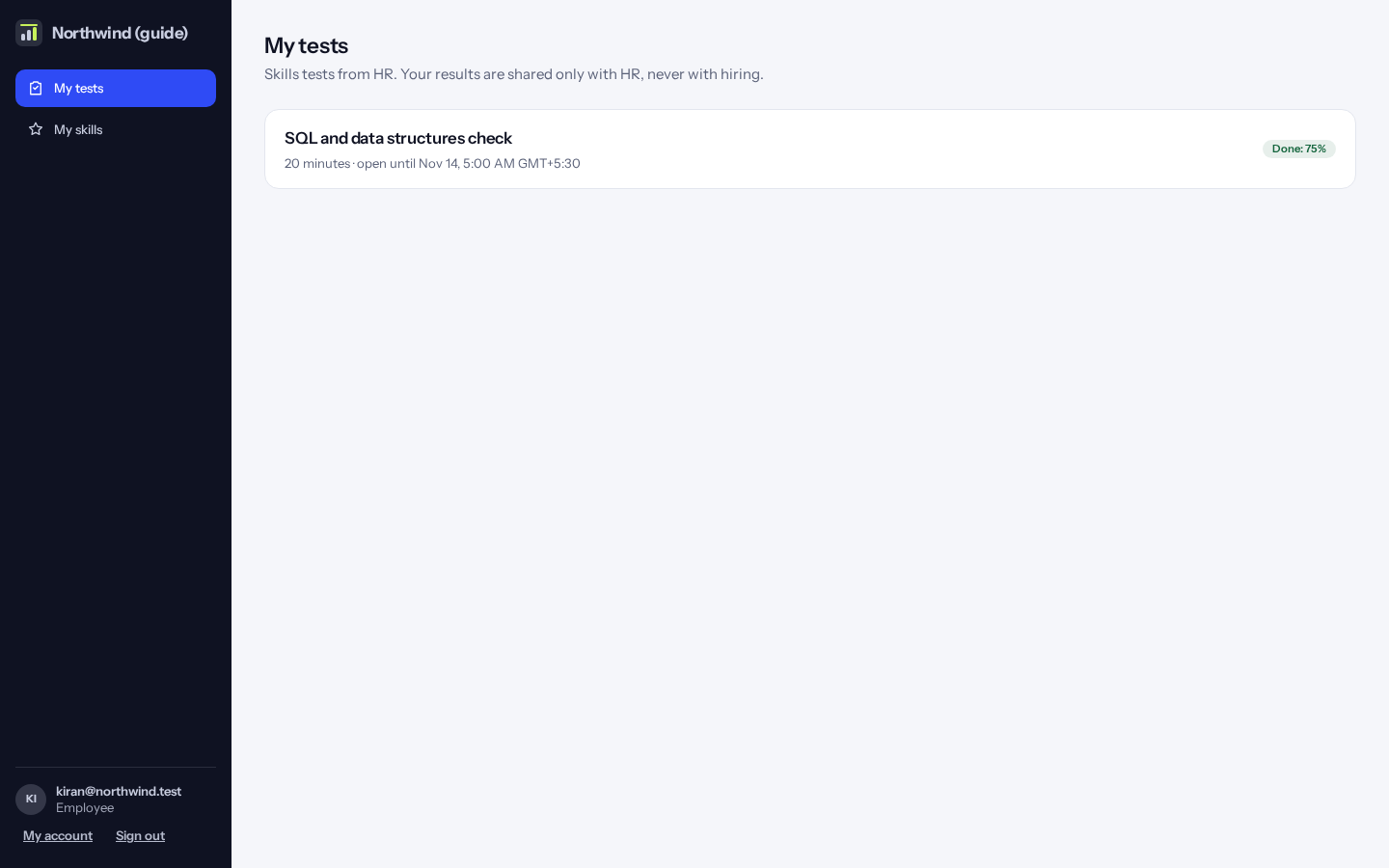
Employees click “My tests” to see tests HR sent them, and start them.
For employees: my skills
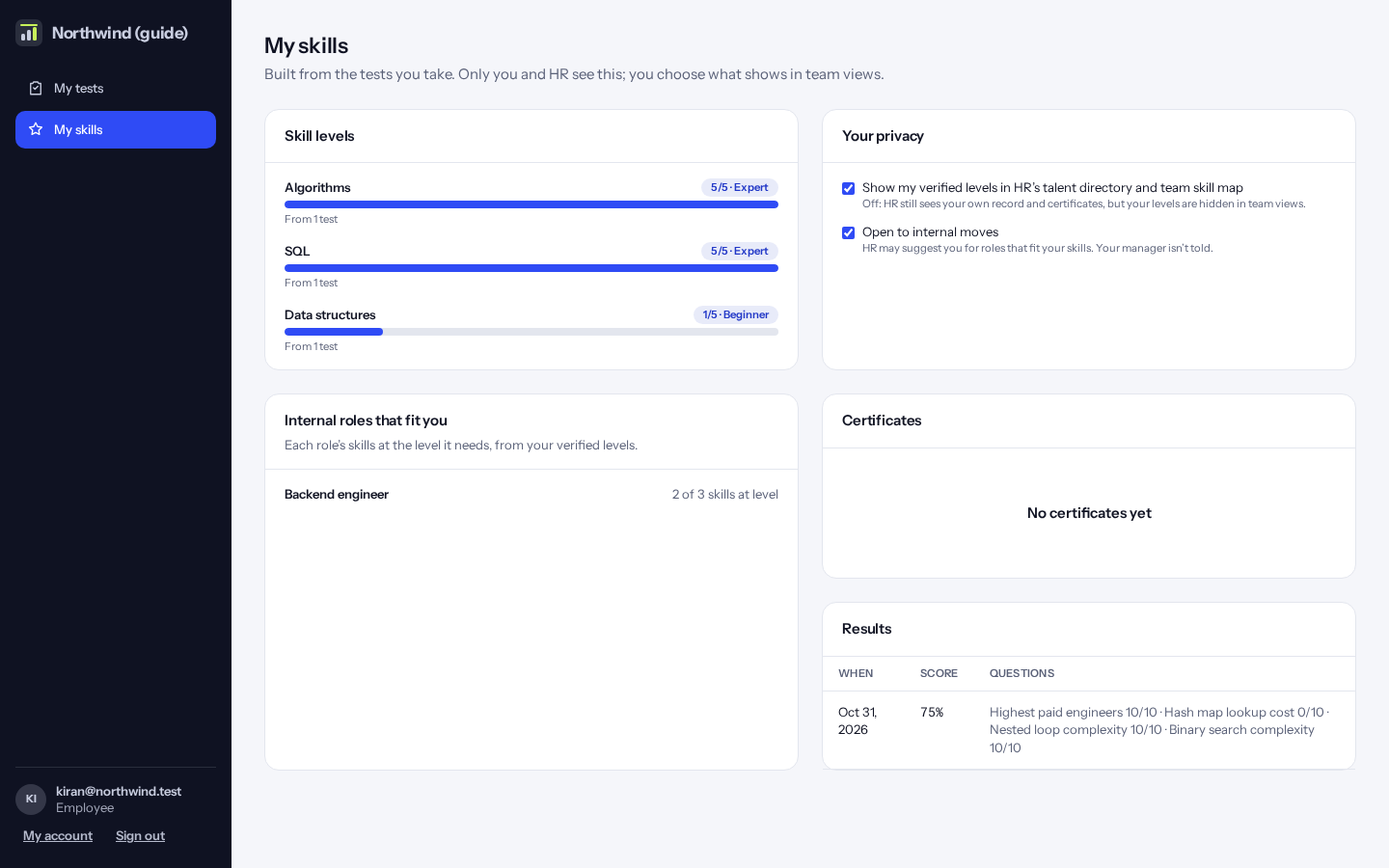
“My skills” shows your levels, certificates and results. Under “Your privacy” you choose whether your levels show in team views, and whether you are open to an internal move. “Internal roles that fit you” compares your levels with each role.